
- Catalogs
- Diagnoptics Technologies
- AGE Reader app User Manual

AGE Reader app User Manual

AGE Reader app User Manual
The AGE Reader app by DiagnOptics Technologies B.V. is designed to create a Cardiovascular Risk Report using AGE Reader measurements and other risk markers. It is available for Windows and Mac, supporting multiple languages, and is intended for communication, not for calculating individual cardiovascular risk.
The app facilitates documentation and consultation of patient visits, report generation, and Bluetooth connections with the AGE Reader mu connect. Users are responsible for managing data stored on their computers.
The app can be downloaded from the Diagnoptics website. Installation differs for Windows and Mac, with specific instructions for each. Windows users should not plug in the Bluetooth dongle during installation, while Mac users drag the app icon to the Applications folder.
Upon initial use, users select language and scaling preferences, input clinic details, and choose risk markers for reports. Bluetooth setup is optional.
Users can add and manage patient details, transfer AGE values via Bluetooth or manual entry, and view, update, and download reports.
Bluetooth requires the Diagnoptics Bluetooth dongle. Users must ensure the AGE Reader mu is on and Bluetooth is activated. The app reconnects to previously connected devices automatically.
The app includes a Patient Overview Page for managing patient files, creating new patients, and sorting/filtering lists. Users can manage patient groups, edit details, and handle reports.
Users are responsible for data management, as emphasized in the liability section.
Catalog excerpts
AGE Reader app User Manual
Open the catalog to page 1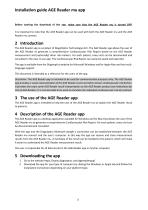
Installation guide AGE Reader mu app Before starting the download of the app, make sure that the AGE Reader mu is turned OFF! It is important to note that the AGE Reader app can be used with both the AGE Reader mu and the AGE Reader mu connect. 2 Introduction The AGE Reader app is a product of DiagnOptics Technologies B.V. The AGE Reader app allows the user of the AGE Reader to generate a comprehensive Cardiovascular Risk Report based on the AGE Reader measurement and (optionally) other risk markers. For each patient, every visit can be documented and consulted in the easy to use app. The Cardiovascular...
Open the catalog to page 3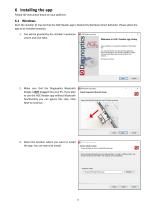
Follow the instruction based on your platform. Start the installer (it may be that the AGE Reader app is blocked by Windows Smart defender. Please allow the app to be installed anyway). You will be greeted by the installer's welcome screen and click Next. Welcome to AGE Reader app Setup Setup will guide you through the installation of AGE Reader app. It is recommended that you dose all other applications before starting Setup. This will make it possible to update relevant system files without having to reboot your computer. Click Next to continue. 2. Make sure that the Diagnoptics Bluetooth dongle...
Open the catalog to page 4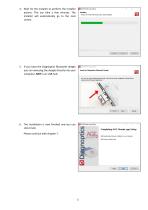
4. Wait for the installer to perform the installer actions. This can take a few minutes. The installer will automatically go to the next screen. 5. If you have the Diagnoptics Bluetooth dongle you can now plug the dongle directly into your computer, NOT in an USB-hub. 6. The installation is now finished and you can click Finish. Please continue with chapter 7.
Open the catalog to page 5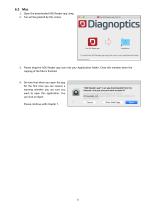
1. Open the downloaded AGE Reader app .dmg 2. You will be greeted by this screen. To install the AGE Reader app drag the icon to your Applications folder 3. Please drag the AGE Reader app icon into your Applications folder. Close this window when the copying of the files is finished. 4. Do note that when you open the app for the first time you can receive a warning whether you are sure you want to open this application. You can click on Open. Please continue with chapter 7.
Open the catalog to page 6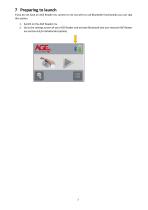
If you do not have an AGE Reader mu connect or do not wish to use Bluetooth functionality you can skip this section. 2. Go to the settings screen of your AGE Reader and activate Bluetooth (see user manual AGE Reader mu section 6.6 for detailed description).
Open the catalog to page 7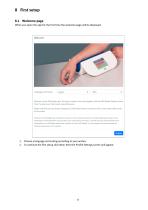
When you open the app for the first time the welcome page will be displayed. 1. Choose a language and scaling according to your wishes. 2. To continue the first setup click Next, then the Profile Settings screen will appear.
Open the catalog to page 8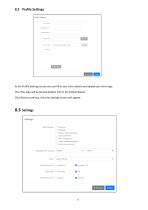
In the Profile Settings screen you can fill in your clinic details and upload your clinic logo. The clinic logo will be printed bottom left on the Patient Report.Click Next to continue, then the Settings screen will appear.8.3 SettingsSettings Risk Markers: 0 Smoking O Diabetes 0 Systolic blood pressure O LDL cholesterol O HDL cholesterol O Intima-media thickness □ Pulse wave velocity Decimal symbol: Paper size: Cholesterol unit:
Open the catalog to page 9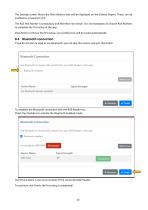
The Settings screen shows the Risk Markers that will be displayed on the Patient Report. These can be enabled to a maximum of 5. The AGE Risk Marker is compulsory and therefore not shown. It is not mandatory to choose Risk Markers to complete the first setup of the app. Click Next to continue the first setup, your preferences will be saved automatically. 8.4 Bluetooth connection If you do not plan or wish to use Bluetooth, you can skip this section and just click Finish. To establish the Bluetooth connection with the AGE Reader mu: Check the checkbox to activate the Bluetooth enabled mode. The...
Open the catalog to page 10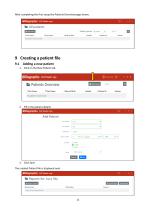
After completing the first setup the Patients Overview page shows: 9 Creating a patient file 9.1 Adding a new patient 1. Click on the New Patient tab. 2. Fill in the patient details: 3. Click Save The created Patient file is displayed next.
Open the catalog to page 11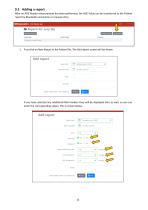
9.2 Adding a report After an AGE Reader measurement has been performed, the AGE Value can be transferred to the Patient report by Bluetooth connection or manual entry. 1. First click on New Report in the Patient file. The Add report screen will be shown If you have selected any additional Risk markers they will be displayed here as well, so you can enter the corresponding values. This is shown below.
Open the catalog to page 12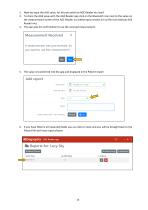
2. Next we input the AGE value, for this we switch to AGE Reader mu itself. 3. To share the AGE value with the AGE Reader app click on the Bluetooth icon next to the value on the measurement screen of the AGE Reader mu (referring to section 6.4 of the User Manual AGE Reader mu). 4. The app asks for confirmation to use the received measurement: 6. If you have filled in all (required) fields you can click on Save and you will be brought back to the Patient file with new report shown:
Open the catalog to page 13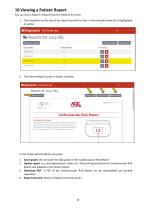
You can view a Patient's Report from the Patient file screen. 1. Click anywhere on the row of the report you wish to view. In the example below this is highlighted in yellow. 0 DISC; n optics AGE Reader app Zoom graph I & Update report I q Download PDF Cardiovascular Risk Report Cardiovascular risk factors are conditions or habits that raise your risk of cardiovascular disease and events. There are traditional and innovative cardiovascular risk factors. This cardiovascular risk report provides an overview of selected cardiovascular risk factors with special attention for the AGE Reader measurement...
Open the catalog to page 14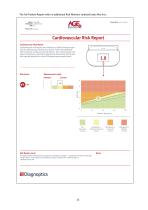
AGE Reader result Notes The AGE Reader measurement is above the average but within 1 standard deviation of the age- -related mean. This indicates a limited increase, corrected for calendar age, in cardiovascular risk.
Open the catalog to page 15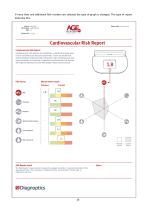
If more than one additional Risk markers are selected the type of graph is changed. This type of report looks like this:
Open the catalog to page 16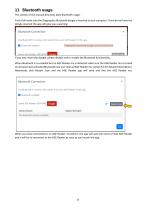
11 Bluetooth usage This section of the manual describes daily Bluetooth usage. First of all make sure the Diagnoptics Bluetooth dongle is inserted in your computer. If you do not have the dongle inserted the app will give you a warning: If you now insert the dongle, please disable and re-enable the Bluetooth functionality. When Bluetooth is re-enabled but no AGE Reader mu is detected make sure the AGE Reader mu is turned on and you have activated Bluetooth (see user manual AGE Reader mu section 6.6 for detailed description). Afterwards click Restart Scan and the AGE Reader app will retry and...
Open the catalog to page 17Archived catalogs
 AGE REader mu Connect
4 Pages
 AGE Reader App
1 Page