


Dialog -diasorin brochure

Dialog -diasorin brochure
- Accessing Dialog: Customers must register on the DiaSorin website to access the Dialog section. Once registered, they can download documents such as Material Safety Data Sheets, Instructions for Use, Assay Protocols, and Method Files.
- Registration Process: Users need to register their laboratory by selecting their geographic area and following the provided instructions. They must accept a disclaimer and select their preferred language.
- Document Identification and Download: Users can search for documents using product codes, names, and batch numbers. The system allows downloading and saving documents to a USB key or printing them directly.
- Importing Assay Protocols: Detailed steps are provided for importing assay protocols into the LIAISON® XL system using a USB flash drive. The process includes selecting the correct file path and confirming the import.
- Assay Revision Compatibility Chart: Instructions are given for downloading and using the Assay Revision Compatibility Chart to ensure compatibility of assay protocols with existing lots.
- Importing Method Files: The document outlines the procedure for importing method files into the LIAISON® system from a USB flash drive, including handling file overwrites.
- DiaSorin emphasizes innovation and customer satisfaction through easy access to necessary documents.
- The Dialog platform is designed to be user-friendly and environmentally friendly.
- Proper registration and document identification are crucial for accessing the correct files.
- Compatibility charts help manage inventory and ensure seamless integration of new assay protocols.
Catalog excerpts

YOUR COMMUNICATION AREA
Open the catalog to page 1
Dialog is the point of contact between DiaSorin and his customers. Through Dialog is possible to download Through the Section Dialog, DiaSorin also confirms its attention to the environment with a new way to share information at “zero impact”. • Material safety data sheet • Instruction for use • Assay Protocol • Method file • Liaison® XL assay revision compatibily chart DISCOVER MORE DETAILS >> • Liaison® Iam instrument file • Molecular Extraction Instrument file Assay Protocol Importing LIAISON® XL Assay Revision Compatibility Chart Method File Importing LIAISON®
Open the catalog to page 2
The process to download the document needed is easy and quick. As first step, all the customers will need to register. Upon your authorization DiaSorin will send you by electronic mail all the relevant news, updates and commercial information. Our constant commitment is the focus on innovation and customer satisfaction.
Open the catalog to page 3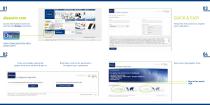
Access the DiaSorin web site and find the Dialog connection. ASSAYS INFO please enter your email and sign in Otherwise click on the blue button to register your Laboratory TwDiaRno-.ni- Spccijlix An you jlr*«dV utecnbtd? Insert ywjr MHII and vy* In. AT* y» not yrt ujbicrtbcd' la Hilorln ir\l> . Itw ami J mm aaaal taa pamri| rf ^IHII aav •ci nji ramix ■rxweif laltiKul. h* u» MuM aa aaHzxijai ia i L-rui LICIEEH te 11 tmla T af IIIIMI Ma IMfrtun em. 1h h»i ;virii.;n IT Hrinw Ttl j Mm" «• T.I ;lnpn>u». m-. IWf t*jiri»fjl [HlWll I I. t**L|. tU IHI Hlfa% iilUllrH £>UIIL* l.p.*. U |M«MI LHLI HI] aU*...
Open the catalog to page 4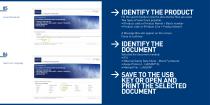
Accept Disclaimer FOLLOWING THE INSTRUCTION TO DOWNLOAD: • INSTRUCTION FOR USE • MATERIAL SAFETY DATA SHEET - Murex® products • ASSAY PROTOCOL • METHOD FILE Fill the search fields to view the documents/ files you need. Two types of search are possible: • (Product code or Product Name) + Batch number • Product code or (Product Line + Product Name) A Message Box will appear on the screen. Close to continue 06 Select your Language FOLLOWING THE INSTRUCTION TO DOWNLOAD: • INSTRUCTION FOR USE • MATERIAL SAFETY DATA SHEET - Murex® products • ASSAY PROTOCOL • METHOD FILE Selected the document needed:...
Open the catalog to page 5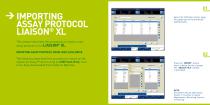
Assay Protocol LIAISON® XL 01 Select the “Definition-Assay” page. This page lists all the previously loaded assays. This chapter describes the procedures to import a new assay protocol on the Liaison® XL. Importing Assay Protocol from USB Flash drive The following steps detail the procedure to import on the system an Assay Protocol using an USB Flash drive, once it has been downloaded from DiaSorin Web Site. 02 Press the “Import” button, which is below the list of assays. The “Select File” window is prompted. Note: the system will not allow assay import if it is either in status Maintenance,...
Open the catalog to page 6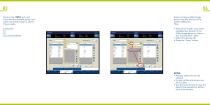
Click on the “Path” pick-list. A list with the available paths from which to retrieve assays is shown. They include: Ensure to have a USB storage device inserted into one of the system USB ports. Then: • Select the F:\ path; a list of the available files present in the USB storage device is shown in the “Existing Files” table • Select the desired file • Press the “Store” button Notes: • Multiple selections are not allowed • In case no files are shown, use the G:\ path • Use the scroll arrows in case the desired file exceeds the bottom limit of the window
Open the catalog to page 7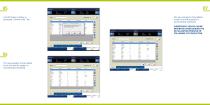
05 A confirmation window is prompted. Confirm with “Yes”. 07 The new assay(s) is (are) added to the list and the system is automatically initialized. Subsequent assays can be imported either during the initialization process or following its completion. 06 The new assay(s) is (are) added to the list and the system is automatically initialized.
Open the catalog to page 8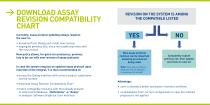
REVISION COMPATIBILITY CHART Currently, assay protocol updating always requires the user to: • donwload from Dialog and install new revision • segregate previous lots, since not usable any more with the new version New policy allows, for given circumstances, previous lots to be run with new revision of assay protocols In case the system requires an updated assay protocol upon insertion of the integral, it is then recommended to: • access the Dialog interface with correct product code/name and lot number • download Assay Revision Compatibility Chart • match compatible revisions with that already...
Open the catalog to page 9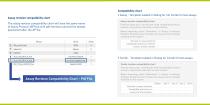
Assay revision compatibility chart The assay revision compatibility chart will have the same name of Assay Protocol (AP) but with pdf extension and will be always positioned after the AP file. Compatibility chart • Assay - Template loaded in Dialog for not Combi format assays Assay revision compatibility chart Previous assay lots, running with listed compatible previous revision, may still be used with current revision. Before importing, check “Definitions” > “Assay” in analyzer Software Graphical User Interface for assay revision already installed on the system Revision in assay protocol: Compatible...
Open the catalog to page 10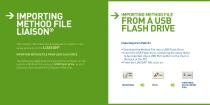
Method File LIAISON® This chapter describes the procedures to import a new assay protocol on the Liaison®. Importing Method File from USB Flash drive The following steps detail the procedure to import on the system a Method File using an USB Flash drive, once it has been downloaded from DiaSorin Web Site. > Importing Method File from A USB Flash drive Importing from Path E:\ • Download the Method File into a USB Flash Drive • Insert the USB Flash drive, containing the assay file(s) to be imported, into a USB Port (either on the front or the back of the PC) • From the LIAISON® SW, click on: THEN...
Open the catalog to page 11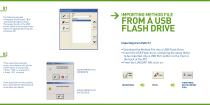
> Importing Method File from A USB Flash drive The following window will appear and the path “E:\” will automatically be listed. The assays found on the USB will be listed in the selection box. Select the appropriate assay file, and press OK. Importing from Path F:\ • Download the Method File into a USB Flash Drive • Insert the USB Flash drive, containing the assay file(s) to be imported, into a USB Port (either on the front or the back of the PC) • From the LIAISON® SW, click on: 02 If the assay file previously exists, the software will ask for confirmation of overwriting • Press “YES” to overwrite...
Open the catalog to page 12All DiaSorin catalogs and technical brochures
 LIAISON
6 Pages
 LIAISON® XL
12 Pages
 EVOlyzer 2-150/8
3 Pages
 ETI - Max 3000 Brochure
3 Pages
Archived catalogs
 DIALOG
15 Pages
 Dia link brochure
8 Pages
 Washer & Reader brochure
2 Pages
 LIAISON Brochure
2 Pages
 LIAISON XL
13 Pages
- PCR system
- Immunoassay analyzer
- Clinical diagnostic immunoassay analyzer
- Automated immunoassay analyzer
- Benchtop immunoassay analyzer
- Compact PCR machine
- Real-time PCR analyzer
- Continuous access immunoassay analyzer
- 96-well PCR machine
- Chemiluminescence immunoassay analyzer
- Blood immunoassay analyzer
- Fluorescence PCR analyzer
- Plasma immunoassay analyzer
- Compact immunoassay analyzer
- Protein immunoassay analyzer
- Fully automated immunoassay analyzer
- Platform immunoassay analyzer
- Urine immunoassay analyzer
- Floor-standing immunoassay analyzer
- Random access immunoassay analyzer