
- Catalogs
- EHD imaging
- EHD MaxCam 16bit Series Cooled Cameras

EHD MaxCam 16bit Series Cooled Cameras
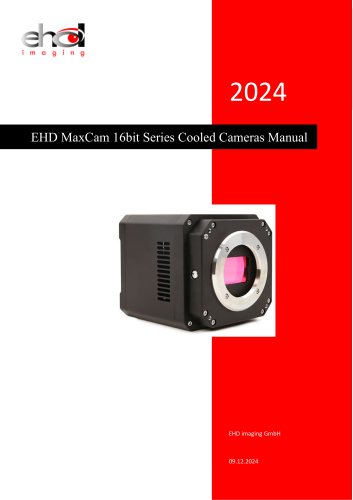
EHD MaxCam 16bit Series Cooled Cameras
The EHD MaxCam 16bit Series Cooled Cameras Manual details the MaxCam Series Two-stage TE-Cooling USB3.0 CMOS Cameras, designed for high-performance imaging in low-light environments such as microscopy and astronomy.
Basic Characteristics
The MaxCam series uses SONY Exmor or GSENSE CMOS sensors with large pixel sizes or full-frame sensors. Key features include two-stage Peltier cooling to -40°C below ambient temperature, a smart structure for efficient heat radiation and moisture prevention, USB3.0 interface for high-speed data transmission, and support for Windows, Linux, and OSX platforms with SDKs in multiple programming languages. Applications include low-light and fluorescence microscopy and deep-sky astronomy.
Camera Specifications
- MaxCam-811M-TE and 811C-TE: 251M pixel 4.1” CMOS sensor, USB3.0 or 10GigE interface, 1.5fps at 19200 x 12800 resolution, gain range of 1x-50x.
- MaxCam-411M-TE and 411C-TE: 151M pixel 4.2” CMOS sensor, dynamic range of 84.9dB.
- MaxCam-461M-TE and 461C-TE: 102M pixel 3.4” CMOS sensor, dynamic range of 82.8dB.
- MaxCam-455M-TE and 455C-TE: 61M pixel 2.7” CMOS sensor, dynamic range up to 84.18dB.
- MaxCam-410C-TE: 24M pixel 2.7” CMOS sensor, dynamic range of 84dB.
- MaxCam-2020Me-TE: 4.2M pixel 1.2” CMOS sensor, dynamic range up to 81.6dB.
- MaxCam-2020UV-TE: GPixel GSENSE2020BSI sensor for UV imaging applications.
Camera Features
- Sensor and Frame Rate: Pixel sizes of 5 µm x 6.5 µm and 11 µm x 11 µm, frame rates of 45 fps at 2048x2048 and 1024x1024, and 44 fps for the second model.
- Conversion Gain and Noise: High Conversion Gain (HCG), Low Conversion Gain (LCG), and High Dynamic Range (HDR) modes with corresponding readout noise levels.
- Dynamic Range and Sensitivity: Ranges from 63.24dB to 79.14dB, peak quantum efficiencies of 93.7% and 95.3%.
- Power and Temperature: Power consumption varies between cooled and uncooled states, working temperatures from -10°C to 50°C.
Interface and Connectivity
- Data Interface: USB3.0 (USB3.1 GEN1) for data transfer, digital I/O options include optical-coupling isolated inputs and outputs.
- Power Supply: Powered via USB3.0 or a 19V power adapter.
Capture Modes and Configuration
- Capture Modes: Supports Video Mode and Trigger Mode, with options for soft and external triggers.
- ROI and Bandwidth Control: Hardware ROI supported, allowing faster frame rates with smaller ROI sizes, adjustable bandwidth from 1% to 100%.
- Cooling System: TEC cooling with PID control ensures low dark current and stable operation, with fan-assisted cooling.
Trigger Modes and Configuration
- Trigger Sources: Includes isolated input, GPIO, counter, PWM, and software triggers, with capture styles like Single, Loop, and Multiple.
- Software Control: EHDView software allows detailed configuration of capture modes, trigger sources, and cooling settings.
Sequence Capture Operation
Sequence capture is initiated by clicking the Sequence button, capturing images until the specified number of frames is reached. The setup is influenced by the selection of Plan or Hardware in the Type combo box and software trigger settings.
Trigger Capture and IO Control Configurations
Trigger Source can be configured as Isolated input, GPIO0, GPIO1, Counter, or PWM. Output modes include Frame Trigger Wait, Exposure Active, Strobe, User Output, Counter Output, or Timer Output.
Options Property Sheet
- Output Page: Configures the destination for captured frames, adjustable file naming and directory settings.
- Sequence Page: Selection between Plan and Hardware types for sequence capture, with settings for exposure time, gain, and delay.
- IO Control Page: Configures line selection, GPIO mode, signal format, debouncer time, input activation, and trigger delay.
- Advanced Page: Settings for software triggers, UART communication, shutter mode, and exposure active mode.
Key Parameters and Configurations
- Exposure Time and Gain: Set for each capture index in the sequence.
- Debouncer Time: Ensures stable trigger signals and prevents false triggering.
- Output Mode: Determines camera interaction with external devices during capture.
- UART Communication: Allows serial communication with external devices, configurable for baud rate and cable select.
Exposure Configuration
Users can select between Specified lines or Common exposure time, configuring start and end lines for Exposure Active signal validity.
Application Installation
Customers can download the latest EHDView software from the EHD website, compatible with ASCOM and DirectShow interfaces.
EHDView Software
Integrates camera control, image acquisition, processing, browsing, and analysis. Supports multiple languages, video modes, and features like automatic capture, hardware ROI, and digital binning. Compatible with all ToupTek cameras.
User Interface Design
Includes menus, toolbars, and five sidebars for quick operation, with a detailed help manual.
Camera Control Sidebar
Features live and still capture, auto and manual exposure, advanced white balance, color adjustment, frame rate control, ROI adjustments, and dark field correction.
Image Processing Functions
Offers video processing functions like broadcasting, recording, watermarking, and image processing functions like contrast control, denoising, and overlay.
Compatibility
Supports Windows, macOS, and Linux, with language support for multiple languages.
Hardware Requirements
Basic requirements include an Intel Core 2 CPU, 2GB RAM, USB 3.0/2.0 port, and a 17" monitor.
SDK Description
Supports multiple platforms and architectures, including Windows, macOS, Linux, and Android. Provides APIs for various programming languages with comprehensive resources and examples.
SDK Content
Includes header files, dynamic library files, drivers, and sample code for different platforms and programming languages, with documentation in English and Simplified Chinese.
Catalog excerpts
EHD MaxCam 16bit Series Cooled Cameras Manual
Open the catalog to page 1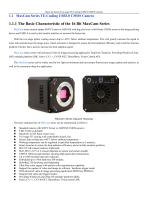
MaxCam Series Two-stage TE-Cooling USB3.0 CMOS Camera 1.1 MaxCam Series TE-Cooling USB3.0 CMOS Camera 1.1.1 The Basic Characteristic of the 16 Bit MaxCam Series MaxCam series camera adopts SONY Exmor or GSENSE with big pixel size or full-frame CMOS sensor as the image-picking device and USB3.0 is used as the transfer interface to increase the frame rate. With the two-stage peltier cooling sensor chip to -40°C below ambient temperature. This will greatly increase the signal to noise ratio and decrease the image noise. Smart structure is designed to assure the heat radiation efficiency and avoid...
Open the catalog to page 2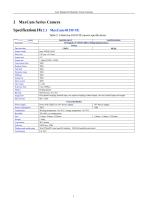
User Manual for Machine Vision Cameras Table 2-1 MaxCam-811M-TE camera specifications
Open the catalog to page 3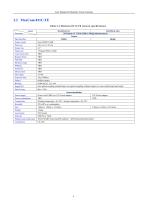
User Manual for Machine Vision Cameras Table 2-2 MaxCam-811C-TR camera specifications
Open the catalog to page 4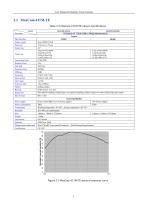
User Manual for Machine Vision Cameras Table 2-3 MaxCam-411M-TE camera specifications
Open the catalog to page 5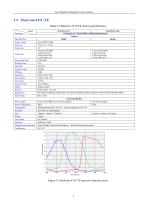
User Manual for Machine Vision Cameras Table 2-4 MaxCam-411C-TE camera specifications
Open the catalog to page 6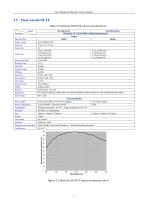
User Manual for Machine Vision Cameras Table 2-5 MaxCam-461M-TE camera specifications
Open the catalog to page 7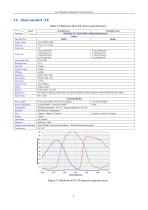
User Manual for Machine Vision Cameras Table 2-6 MaxCam-461C-TE camera specifications
Open the catalog to page 8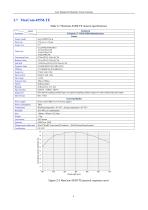
User Manual for Machine Vision Cameras Table 2-7 MaxCam-455M-TE camera specifications
Open the catalog to page 9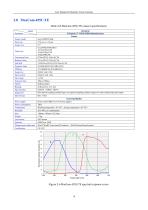
User Manual for Machine Vision Cameras Table 2-8 MaxCam-455C-TE camera specifications
Open the catalog to page 10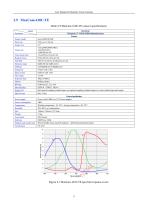
User Manual for Machine Vision Cameras Table 2-9 MaxCam-410C-TE camera specifications
Open the catalog to page 11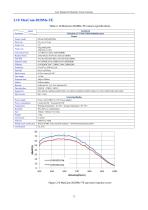
User Manual for Machine Vision Cameras ~ MAX04AM4.2M pixels 1.2” CMOS USB3.0 industrial camera Camera
Open the catalog to page 12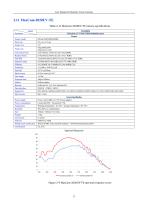
User Manual for Machine Vision Cameras Table 2-11 MaxCam-2020UV-TE camera specifications
Open the catalog to page 13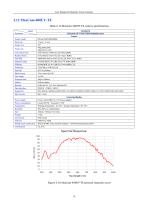
User Manual for Machine Vision Cameras Table 2-12 MaxCam-400UV-TE camera specifications
Open the catalog to page 14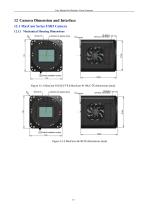
User Manual for Machine Vision Cameras 12 Camera Dimension and Interface 12.1 MaxCam Series USB3 Camera 12.1.1 Mechanical Housing Dimensions
Open the catalog to page 15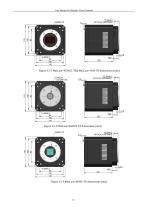
User Manual for Machine Vision Cameras
Open the catalog to page 16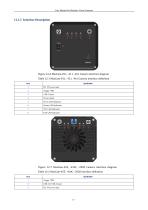
User Manual for Machine Vision Cameras
Open the catalog to page 17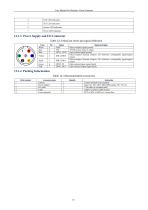
User Manual for Machine Vision Cameras
Open the catalog to page 18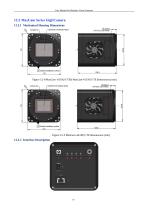
User Manual for Machine Vision Cameras 12.2 MaxCam Series GigECamera 12.2.1 Mechanical Housing Dimensions Figure 12-8 MaxCam- 811M/C-TE& MaxCam-411M/C-TE dimensions (mm)
Open the catalog to page 19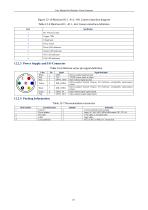
User Manual for Machine Vision Cameras Figure 12-10 MaxCam-811, -411, -461 Camera interface diagram Table 12-5 MaxCam-811, -411, -461 Camera interface definition
Open the catalog to page 20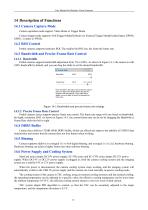
User Manual for Machine Vision Cameras Camera operation mode support: Video Mode or Trigger Mode. Camera trigger mode supports: Soft Trigger Mode(Software) or External Trigger Mode(Isolated input, GPIO0, GPIO1, Counter or PWM). Partial cameras supports hardware ROI. The smaller the ROI size, the faster the frame rate. Partial cameras supports bandwidth adjustment from 1% to 100%. As shown in Figure 14-1, the camera is with 100% bandwidth by default, and you can drag the slider to set the desired bandwidth. Move the slider to the right to ensure that the camera plays live video at the fastest...
Open the catalog to page 21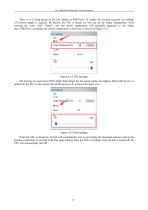
User Manual for Machine Vision Cameras There is a Cooling group on the left sidebar in EHDView. To enable the Cooling function, an external 12V power supply is required. By default, the TEC is turned on. One can set the Target Temperature. After entering the value, click "Apply", and the sensor temperature will gradually approach to the Target Temperature. At can the display same the current temperature in real time, as shown in Figure 14-2. time, EHDView Figure 14-2 TEC settings The Fan has two gears from Off to High. When High, the Fan speed reaches the highest. When Off, the Fan is turned...
Open the catalog to page 22
User Manual for Machine Vision Cameras The trigger function can be found on the Capture & Resolution group on the Camera Sidebar in EHDView. When the camera is opened, it is in Video Mode as shown in Figure 15-1 on the left. In Video Mode, Auto Exposure, Exposure Target, Exposure Time and Gain can be set. One can switch to Trigger Mode by checking the Trigger Mode check box. Figure 15-1 Video Mode and Trigger Mode on the Capture & Resolution group in EHDView After the Trigger Mode is checked, the Capture & Resolution group will switch to Trigger Mode as shown in Figure 15-1 on the right. Where,...
Open the catalog to page 23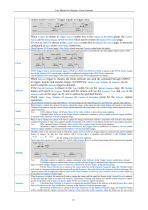
User Manual for Machine Vision Cameras camera needs to receive 3 trigger signals to trigger once; Counter is chosen in Trigger Source combo box in the Capture & Resolution group, the Counter can be Isolated input, GPIO0 or GPIO1 which can be chosen on Options>IO Control page; If GPIO0 or GPIO1 is chosen in the Counter Source combo box on Options>IO Control page. It should be configured as Input in the GPIO Mode combo box; Source Check Options>IO Control page’s Line Select related items and Counter related items for details; PWM refers to the operation mode in which the camera exposure time is...
Open the catalog to page 24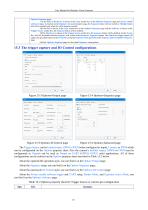
User Manual for Machine Vision Cameras Options>Sequence page; 3) If the Plan or Hardware is chosen in the Type combo box on the Options>Sequence page and Always enable software trigger is checked on the Options>Advanced property page, the Sequence button will not switch to Multiple button and will be enabled only when the still in Sequence enable 4)If the Plan is chosen in the Type combo box on the Options>Sequence page and the Software is chosen in the Trigger Source combo box, the Sequence button will be enabled. 5)If the Hardware is chosen in the Trigger Source combo box, the Sequence button...
Open the catalog to page 25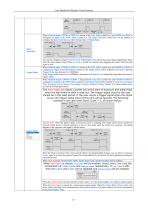
User Manual for Machine Vision Cameras When Isolated input, GPIO0 or GPIO1 is chosen in the Line Select combo box and GPIO0 or GPIO1 is configured as Input in the GPIO Mode combo box; The Input Activation combo box will be enabled to configure the Input Activation as either Rising Edge or Falling Edge; rising edge falling edge Trigger delay Input Activation Trigger Delay Trigger delay Also can be configure as high level or low level. When high level is selectd, the camera keeps triggering the frame when the input signal is high; When low level is selectd, the camera keeps triggering the frame...
Open the catalog to page 27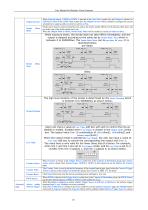
User Manual for Machine Vision Cameras Output Inverter When Isolated output, GPIO0 or GPIO1 is selected in the Line Select combo box and Output is chosen for GPIO0 or GPIO1 in the GPIO Mode combo box, the Output Inverter will be enabled to configure the current selected line’s output as either inverted or not(Yes or No). Strobe Mode Strobe can be used to control external devices such as the strobe, and the effective level duration, delay time, and pre-delay time of the strobe signal can be set; When the Output Mode is Strobe, Strobe Delay Mode will be enabled. It can be pre-delay or delay; When...
Open the catalog to page 28All EHD imaging catalogs and technical brochures
 MaxCam‐990TE‐TR
2 Pages
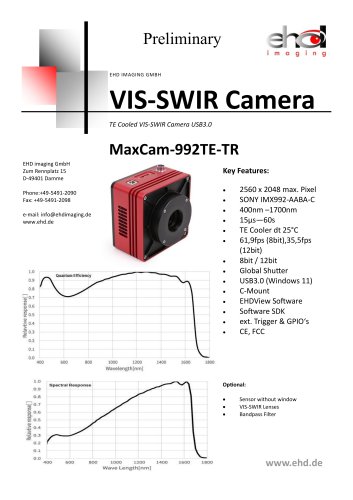 MaxCam-992TE-TR
2 Pages
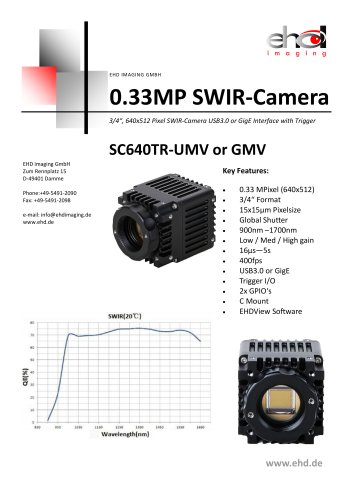 SC640TR-UMV or -GMV
2 Pages
 SC‐2020UV‐ITR
46 Pages
 EHD ICM-Series
51 Pages
 MaxCam‐400UV‐TE
38 Pages
 EHD SC-CTR Series Cooled Cameras
39 Pages
 EHD Vis-SWIR Series
172 Pages
 EHDView Software
137 Pages
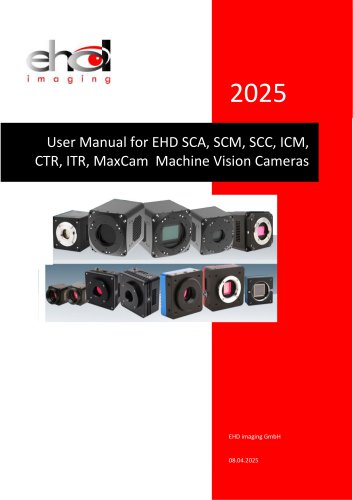 EHD SCM-SCA-SCC-TR series
308 Pages
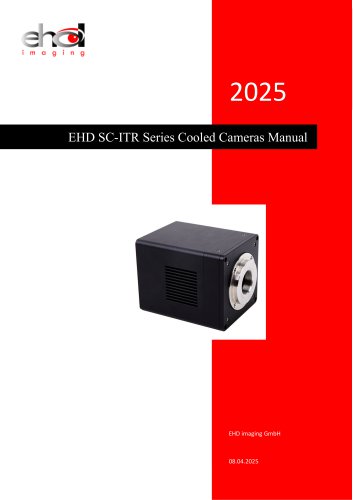 EHD SC-ITR Series
48 Pages
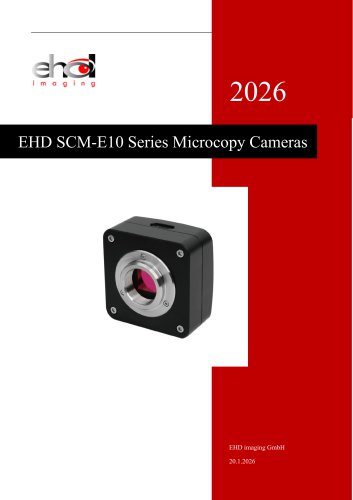 SCM-E10 Series Microcopy Cameras
4 Pages
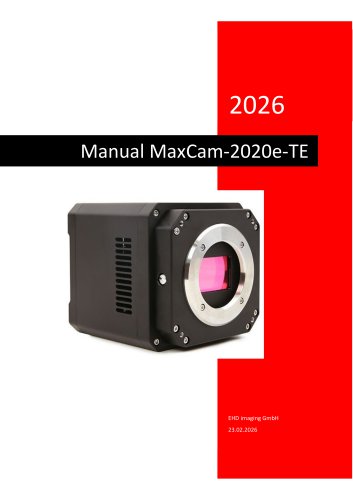 MaxCam‐2020e‐TE
39 Pages
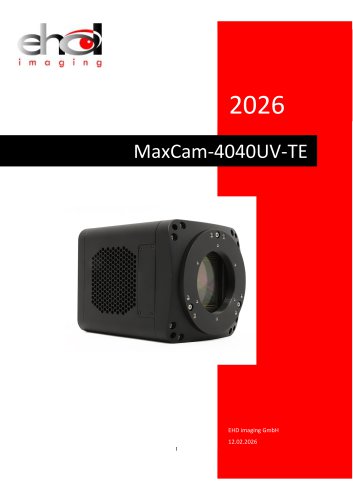 MaxCam‐4040UV‐TE
44 Pages
- Microscopy
- Compound microscope
- Laboratory microscope
- Desktop microscope
- Laboratory software
- Camera with USB port
- LED microscope
- Acquisition software
- Medical camera
- Measurement software
- Full HD camera
- HD camera
- Recording software
- Microscope camera
- Fluorescence microscope
- Real-time software
- Digital microscope
- Ultra-high resolution camera
- Monocular microscope