
- Catalogs
- EHD imaging
- EHDView Software

EHDView Software
EHDView Software
Catalog excerpts
EHDView Manual Version 4.11 EHD imaging GmbH Zum Rennplatz 15 D‐49401 Damme (Germany) Tel: +49‐5491‐2090 / email: [email protected] www.ehd
Open the catalog to page 1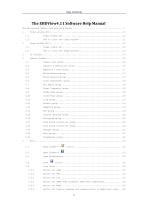
Help Contents Open Image Open Videos” Open Broadcast" 5.5.6 Option for Digital Imaging and Communication in Medicine(*.dcm) ...26
Open the catalog to page 2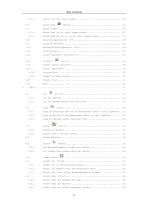
Quick Save Copy the selected area on the Background layer to the clipboard ... 33 Image Select Select None for Browse/Thumbnail w
Open the catalog to page 3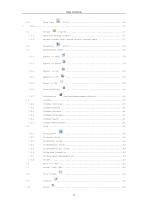
Help Contents Deep Copy Auto Highlight Full Screen
Open the catalog to page 4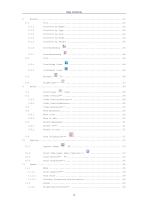
Icon>Large Icons Icon>Small Icons Gray Calibration••• Capture Image Start Time-lapse (Auto Capture)••• Start Record•••
Open the catalog to page 5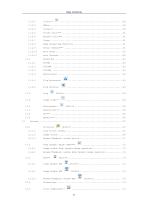
Help Contents Flip Horizontal Flip Vertical Image Size••• High Dynamic Range (HDR)•••
Open the catalog to page 6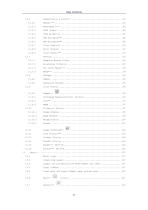
Image Stacking•••
Open the catalog to page 7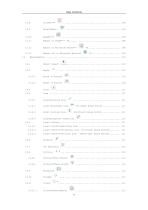
Help Contents Export to Microsoft Excel••• Export all to Microsoft Excel••• Object Select Line>Arbitrary Line Line> Horizontal Line Line> Vertical Line Line>Multipoint Connection Vertical>Four Points. Vertical>Three Points
Open the catalog to page 8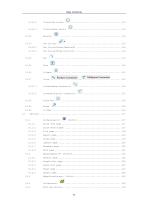
Help Contents Circle>Two Points Circle>Three Points Curve>Random Connection Curve>Multipoint Connection
Open the catalog to page 9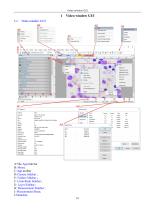
A:The App title bar B: Menu; C:App toolbar D:Camera Sidebar ; E: Folders Sidebar ; F: Undo/Redo Sidebar ; G: Layer Sidebar ; H: Measurement Sidebar ; I: Measurement Sheet; J:Statusbar; 10
Open the catalog to page 11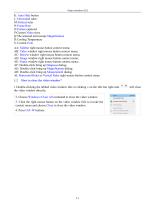
K: Auto Hide button L: Horizontal ruler; M:Vertical ruler N:Frame Rate O:Frames captured P:Current Video sizes Q:The selected microscope Magnification R:Cooling Temperature AA: Sidebar right mouse button context menu; AB: Video window right mouse button context menu; AC: Browse window right mouse button context menu; AD: Image window right mouse button context menu; AE: Frame window right mouse button context menu; AF: Double-click bring up Diagnose dialog; AG: Double-click bring up Magnification dialog; AH: Double-click bring up Measurement dialog; AI: Horizontal Ruler or Vertical Ruler right...
Open the catalog to page 12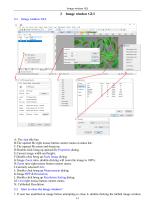
A: The App title bar; B:The opened file right mouse button context menu on status bar; C:The opened file name and directory; D:Double-click bring up opened file Properties dialog; E:Current image width and height; F:Double-click bring up Scale Image dialog; G:Image Zoom ratio, double-clicking will zoom the image to 100%; H:Zoom ratio right mouse button context menu; I:Currently selected Unit; J: Double-click bring up Measurement dialog; K:Image BPP & Resolution; L:Double-click bring up Resolution Setting dialog; M: Unit right mouse button context menu; N: Calibrated Resolution. 2.2 How to close...
Open the catalog to page 13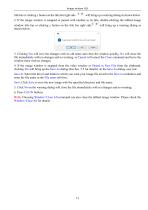
title bar or clicking x button on the title bar right side will bring up a warning dialog as shown below: 2. If the image window is snapped or pasted with number as its title, double-clicking the tabbed image window title bar or clicking x button on the title bar right side shown below: will bring up a warning dialog as 3. Clicking Yes will save the changes with its old name and close the window quickly, No will close the file immediately with no changes and no warning, or Cancel will cancel the Close command and leave the window there with no changes; 4. If the image window is snapped from the...
Open the catalog to page 14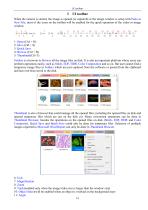
When the camera is started, the image is opened (or captured) or the image window is setup with Paste as New File, most of the icons on the toolbar will be enabled for the quick operation of the video or image window. 3: Quick Save 4: Browse (Ctrl + B) Folders is a browser to Browse all the image files on disk. It is also an important platform where users can perform operations easily, such as Stitch, EDF, HDR, Color Composition and so on. But user cannot find a temporary image files in Folders which are just captured from the software or pasted from the clipboard and have not been saved to the...
Open the catalog to page 15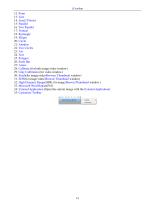
15: Parallel 16: Two Parallel 17: Vertical 18: Rectangle 19: Ellipse 20: Circle 21: Annulus 22: Two Circles 23: Arc 24: Text 25: Polygon 26: Scale Bar 27: Arrow 28: Calibrate (for both image/video window) 29: Gray Calibration (for video window) 30: Stitch(for image/video/Browse/ Thumbnail window) 31: EDF(for image/video/Browse/ Thumbnail window) 32: High Dynamic Range(HDR, for image/Browse/Thumbnail window ) 34: External Application (Open the current image with the External Application) 35: Customize Toolbar
Open the catalog to page 16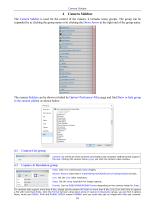
Camera Sidebar Camera Sidebar The Camera Sidebar is used for the control of the camera, it includes many groups. The group can be expanded by a) clicking the group name or b) clicking the Down Arrow at the right end of the group name. The camera Sidebar can be shown or hided by Option>Preference>Misc page and find Show or hide group in the camera sidebar as shown below: Camera List group Camera List will list all of the cameras connected to the computer USB ports that support the App. Clicking the camera name yyyyy will start the camera video window. Capture & Resolution group Snap: Click it...
Open the catalog to page 17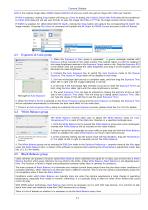
Camera Sidebar RAW is the original image data; RGB48 means RGB161616 and you could only get an image with 16bits per channel. If RAW is selected, clicking Snap button will bring up a Save As dialog, the 10bits/12bits/14bits RAW data will be transferred to 16bits RAW data and will ask user directly to save the image into DNG or TFT file. No image window will be created. If RGB48 is selected, for 10bit/12bit/14bit Bit Depth, clicking the Snap button will capture the corresponding Bit Depth into image window. Choosing File>Save As command will transfer the Bit Depth to RGB48 Format and save it with...
Open the catalog to page 18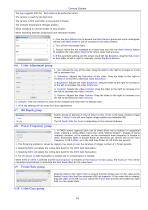
Camera Sidebar The App suggests that the Back Balance be performed when: The camera is used for the first time; The camera is first used after a long period of disuse; The ambient temperature changes greatly; When switching to normal shutter or slow shutter; When switching between progressive and interlaced modes; 1. Click the Back Balance bar to expand the Black Balance group and a pink rectangular marked with Black Balance will be overlaid on the video window; 2. Turn off the microscope light; 2. Drag or resize the red rectangle to a black area and click the Black Balance button to establish...
Open the catalog to page 19All EHD imaging catalogs and technical brochures
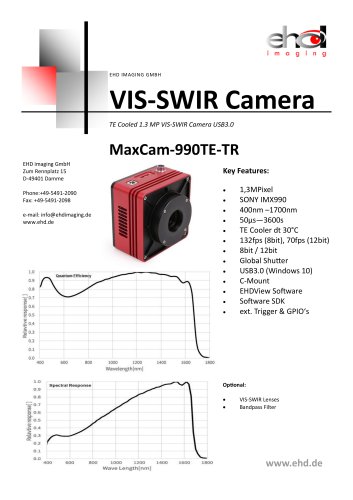 MaxCam‐990TE‐TR
2 Pages
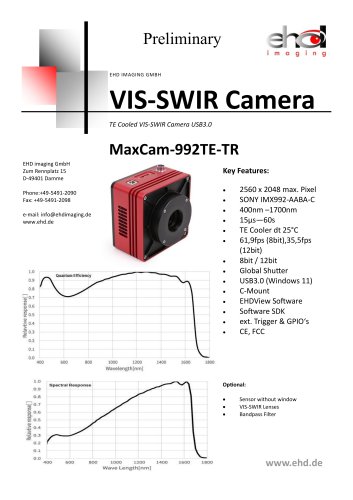 MaxCam-992TE-TR
2 Pages
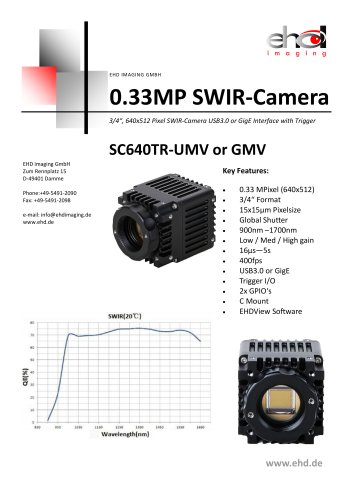 SC640TR-UMV or -GMV
2 Pages
 SC‐2020UV‐ITR
46 Pages
 EHD ICM-Series
51 Pages
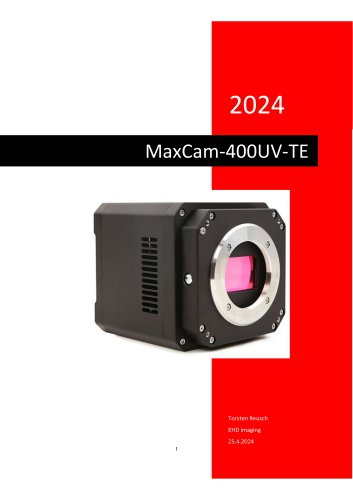 MaxCam‐400UV‐TE
38 Pages
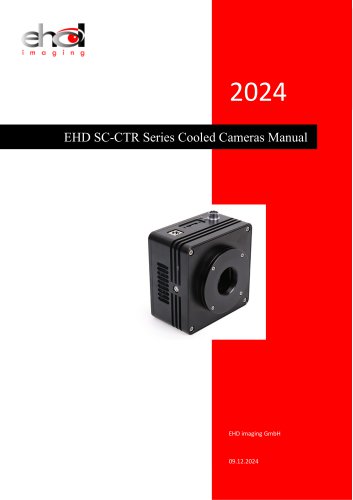 EHD SC-CTR Series Cooled Cameras
39 Pages
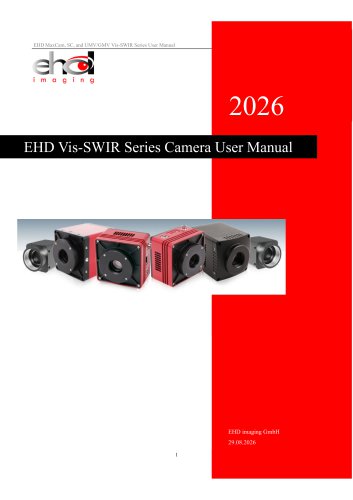 EHD Vis-SWIR Series
172 Pages
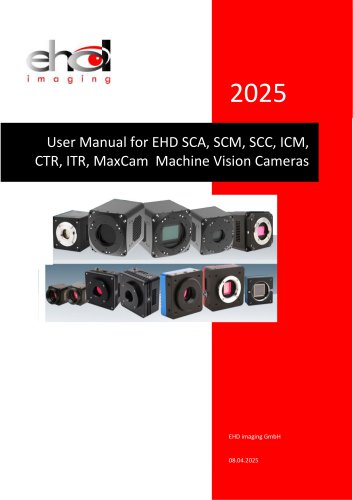 EHD SCM-SCA-SCC-TR series
308 Pages
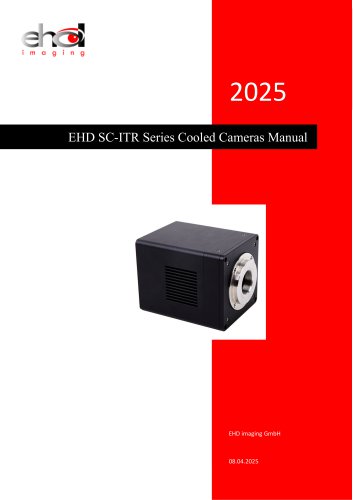 EHD SC-ITR Series
48 Pages
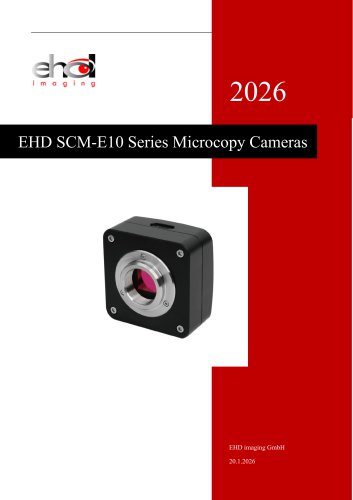 SCM-E10 Series Microcopy Cameras
4 Pages
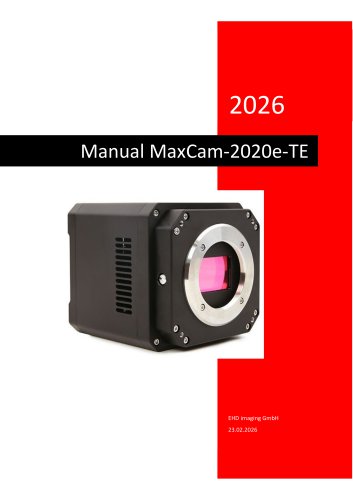 MaxCam‐2020e‐TE
39 Pages
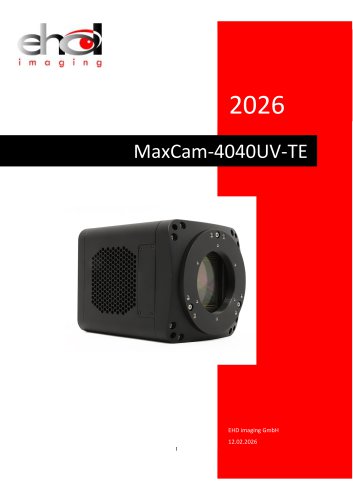 MaxCam‐4040UV‐TE
44 Pages
- Compound microscope
- Laboratory microscope
- Desktop microscope
- Laboratory software
- CMOS camera
- Camera with USB port
- LED microscope
- Acquisition software
- Medical camera
- Measurement software
- Full HD camera
- HD camera
- Recording software
- Fluorescence microscope
- Real-time software
- Digital microscope
- Ultra-high resolution camera
- Monocular microscope