
- Catalogs
- Hingmed Medical
- ABPM software


- Company
- Products
- Catalogs
- News & Trends
- Exhibitions
ABPM software

ABPM software
ABPM is a diagnostic tool used to monitor blood pressure over a 24-hour period, aiding in the prediction of cardiovascular risks and organ damage. Key parameters include systolic and diastolic pressure, and pulse rate.
The software facilitates flexible blood pressure study, analysis, and reporting. It supports data retrieval, patient management, and trend analysis, with capabilities to generate PDF reports containing patient data and statistical results.
Installation requires a USB disk, Windows 2003 or later, a screen resolution of at least 1024x768, and 100MB of disk space.
The software connects to monitors via cable or Bluetooth, allowing parameter setting, data retrieval, and patient management. The menu bar includes options for user management, programming, and data management.
The default database path is D:\HingMed DataBase, which can be changed through the configuration menu. Users can also configure color settings, hospital information, Bluetooth devices, and report logos.
Data can be downloaded, viewed, imported, exported, and modified. Trend graph analysis allows for the customization of analysis standards and threshold settings.
PRP is a cardiovascular risk indicator calculated by multiplying the average systolic reading by the average heart rate, divided by 1000.
Data comparison involves analyzing hourly average curves to assess treatment effectiveness. Reports can be generated in standard or classic formats and exported as PDFs.
Users can manage doctor's instructions, medications, and patient information, including personal and hospitalization details.
The document provides error code descriptions and resolutions. The software supports up to 7 days of data analysis, with technical support contact information available.
Catalog excerpts

Ambulatory Blood Pressure Monitor User Guide of PC Software Version: A/1 Date: July 18, 2024
Open the catalog to page 1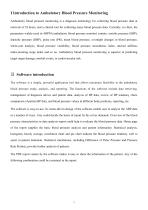
Ⅰ Introduction to Ambulatory Blood Pressure Monitoring Ambulatory blood pressure monitoring is a diagnosis technology for collecting blood pressure data at intervals of 24 hours, and a clinical tool for collecting many blood pressure data. Currently, in clinic, the parameters widely-used in ABPM (ambulatory blood pressure monitor) contain: systolic pressure (SBP), diastolic pressure (DBP), pulse rate (PR), mean blood pressure, overnight changes in blood pressure, white-coat analysis, blood pressure variability, blood pressure smoothness index, arterial stiffness index,morning surge index and...
Open the catalog to page 3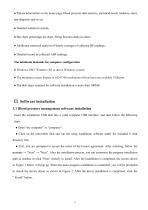
• Patient information on the home page, blood pressure data analysis, statistical result, tendency chart, and diagnosis and so on; • Detailed statistical content; • Bar chart, percentage pie chart, fitting function analysis chart; • Additional statistical analysis of hourly averages of collected BP readings; • Detailed record of collected ABP readings. The minimum demands for computer configuration • Windows 2003, Windows XP or above Windows system • The minimum screen display is 1024*768 resolutions with at least one available USB port. • The disk space required for software installation is...
Open the catalog to page 4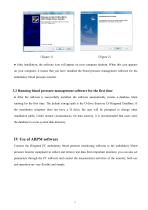
● After installation, the software icon will appear on your computer desktop. When this icon appears on your computer, it means that you have installed the blood pressure management software for the ambulatory blood pressure monitor. 3.2 Running blood pressure management software for the first time ● After the software is successfully installed, the software automatically creates a database when running for the first time. The default storage path is the D drive directory D:\Hingmed DataBase. If the installation computer does not have a D drive, the user will be prompted to change other installation...
Open the catalog to page 5
• User management: Mainly patient information management, playback and viewing; • Programming: Used to set blood pressure monitoring frequency and time through PC software, edit patient information, and set machine functions and parameters during measurement; •Management: Used for database path setting, data import, export, function configuration and help; • Exit: Exit the software. • Tendency charts: Display raw data, threshold edition,analyze project selection and blood pressure tendency curve; • Detailed data: Display the detailed data measured by a single patient; • Statistics: Conduct various...
Open the catalog to page 6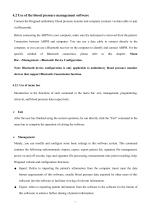
4.2 Use of the blood pressure management software Connect the Hingmed ambulatory blood pressure monitor and computer (connect via data cable or pair via Bluetooth). Before connecting the ABPM to your computer, make sure the instrument is removed from the patient. Connection between ABPM and computer: You can use a data cable to connect directly to the computer, or you can use a Bluetooth receiver on the computer to identify and connect ABPM. For the specific Bar→Management→Bluetooth Device Configuration. Note: Bluetooth device configuration is only applicable to ambulatory blood pressure monitor...
Open the catalog to page 7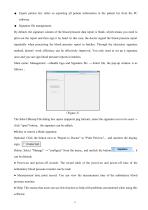
Export patient list: refers to exporting all patient information in the patient list from the PC software. Signature file management: By default, the signature column of the blood pressure data report is blank, which means you need to print out the report and then sign it by hand. In this case, the doctor signed the blood pressure report repeatedly when processing the blood pressure report in batches. Through the electronic signature method, doctors' work efficiency can be effectively improved. You only need to set up a signature once and you can sign blood pressure reports in batches. Main menu:...
Open the catalog to page 8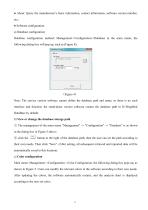
● About: Query the manufacturer’s basic information, contact information, software version number, etc.; ● Software configuration. a) Database configuration Database configuration method: Management->Configuration->Database in the main menu, the following dialog box will pop up, such as (Figure 4); (Figure 4) Note: The service version software cannot define the database path and name, so there is no such interface and function; the stand-alone version software creates the database path in D:\HingMed DataBase by default. b) View or change the database storage path ① The management of the main...
Open the catalog to page 9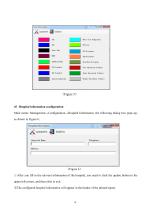
d)Hospital information configuration Main menu: Management→Configuration→Hospital Information, the following dialog box pops up, as shown in Figure 6; After you fill in the relevant information of the hospital, you need to click the update button in the upper left corner, and then click to exit. ②The configured hospital information will appear in the header of the prin
Open the catalog to page 10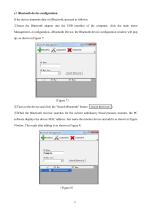
e)Bluetooth device configuration If the device transmits data via Bluetooth, proceed as follows: ①Insert the Bluetooth adapter into the USB interface of the computer, click the main menu Management→Configuration→Bluetooth Device, the Bluetooth device configuration window will pop up, as shown in Figure 7: (Figure 7) ②Turn on the device and click the "Search Bluetooth" button ③When the Bluetooth receiver searches for the current ambulatory blood pressure monitor, the PC software displays the device MAC address. Just name the monitor device and add it as shown in Figure 9 below. The result after...
Open the catalog to page 11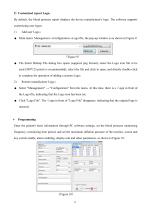
f)Customized report Logo: By default, the blood pressure report displays the device manufacturer's logo. The software supports customizing user logos; 1) ● Add user Logo: Main menu: Management→Configuration→Logo file, the pop-up window is as shown in Figure 9: The Select Bitmap File dialog box opens (supports png format); select the Logo icon file to be used (500*125 pixels is recommended), select the file and click to open, and directly double-click to complete the operation of adding a custom Logo; Restore manufacturer Logo: Select "Management" → "Configuration" from the menu. At this time,...
Open the catalog to page 12All Hingmed Medical catalogs and technical brochures
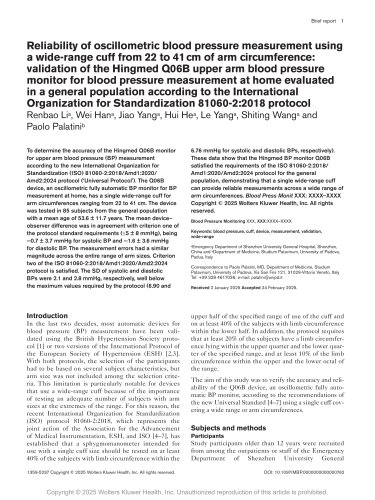
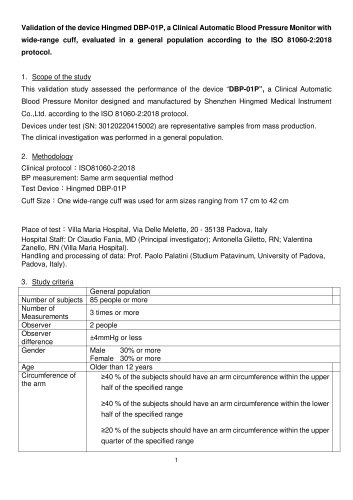
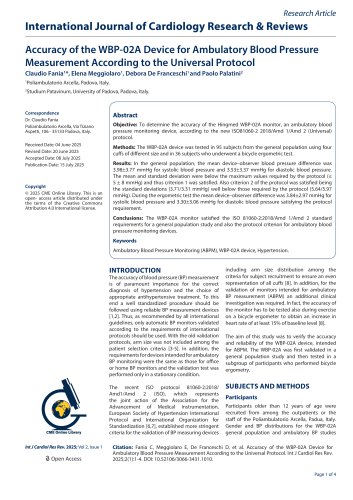
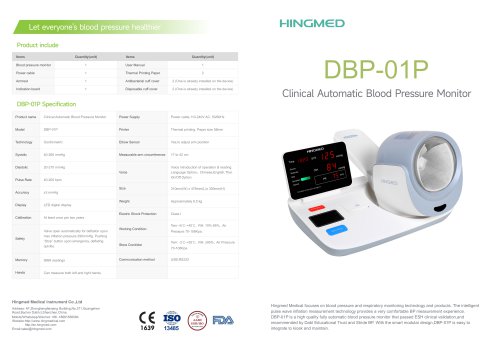 Hingmed DBP-01P Pass FDA
2 Pages
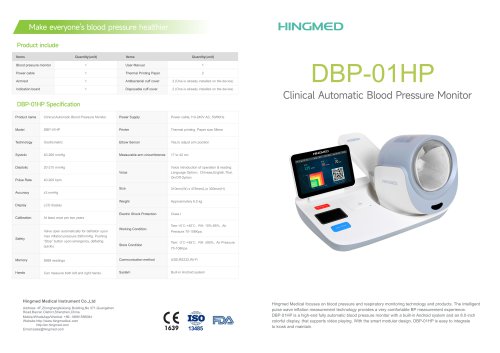
 Hingmed Profile and Catalog
26 Pages
 Hingmed ABPM ABP-03
7 Pages
 ABP-03
2 Pages



- Analysis software
- Automatic blood pressure monitor
- Tablet computer software
- Windows software
- Blood pressure monitor with adult cuff
- Electronic ventilator
- Non-invasive ventilator
- Hospital software
- Oscillometric blood pressure monitor
- Automated software
- Ventilator with touch screen
- Portable ventilator
- Blood pressure monitor with built-in cuff
- Intensive care ventilator
- Emergency ventilator
- CPAP ventilator
- Blood pressure monitor with rechargeable battery
- Cardiology software
- Data analysis software