
- Catalogs
- Hingmed Medical
- WBP-02A 24hr ambulatory blood pressure monitor quick start manual


- Company
- Products
- Catalogs
- News & Trends
- Exhibitions
WBP-02A 24hr ambulatory blood pressure monitor quick start manual

WBP-02A 24hr ambulatory blood pressure monitor quick start manual
- Insert the CD and follow the auto-install program. If it doesn't start, run 'setup.exe' from the CD.
- Accept the license agreement and proceed with the installation.
- After software installation, set up the device driver by accepting the agreement and proceeding.
- Finish the installation process.
- Create patient identity by entering name and gender. The system generates a patient number automatically.
- Set measurement times for day and night, with intervals ranging from 5 to 120 minutes.
- Configure other parameters like max measurement pressure, display settings, keypad settings, and time intervals.
- Enable alarms for BP measurements outside set ranges.
- Connect the device to the PC via USB and use the 'Read' function to upload BP records.
- View data analysis through statistics, histograms, pie charts, and correlation graphs.
- Modify awake/asleep periods and BP thresholds as needed.
- Provide doctor's advice and generate a report in PDF format.
- Configure hospital information, upload logo and signature files, and modify color settings for statistical features.
Catalog excerpts
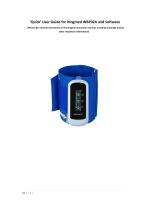
‘Quick’ User Guide for Hingmed WBP02A and Software (Please also read all instructions in the Original Instruction manual, including warnings and all other important information)
Open the catalog to page 1
1. Install HINGMED PC software Before Start Please uninstall any previous version of HINGMED PC software in the computer. Remove previous program There are two ways to remove the previous installation. Windows XP: Step 1: Click /, then select Control Panel. Step 2: In the Control Panel window, double click / programs icon. Step 3: Find out the item HINGMED English software x.x.x.x then remove it. Windows Vista / Win 7: Step 1: Click /, then select folder. Step 2: Press Remove icon and the program will be uninstalled automatically. Install HINGMED PC software The following steps guide the user...
Open the catalog to page 2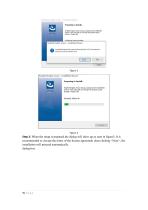
Step 2: When the setup is prepared.the dialog will show up as seen in figure3; It is recommended to Accept the terms of the license agreement ,then clicking , the installation will proceed automatically. dialog box.
Open the catalog to page 3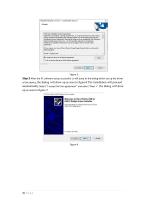
Step 3 After the PC software setup successful ,it will jump to the dialog which set up the driver of the device ,the dialog will show up as seen in figure4.The installation will proceed automatically.Select “I accept the the agreement” and select “Next >” ,the dialog will show up as seen in figure 5
Open the catalog to page 4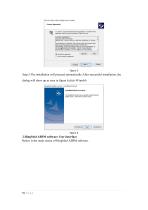
Step 5.The installation will proceed automatically.After successful installation, the dialog will show up as seen in figure 6,click . 2.HingMed ABPM software User Interface Below is the main screen of HingMed ABPM software.
Open the catalog to page 5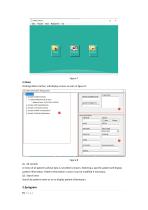
Figure 7 2.1Data Clicking button, will display screen as seen in figure 8. Figure 8 (1) All records A menu of all patients whose data is recorded is shown. Selecting a specific patient will display patient information. Patient information in area 3 can be modified if necessary. (2) Search area Search by patient name or no to display patient information.
Open the catalog to page 6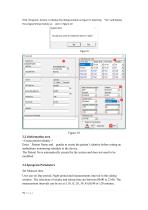
Click button, to display the dialog window as Figure 9, Selecting the programming module as seen in figure 10 2.2.1Information area Enter Patient Name and gender to create the patient’s identity before setting an ambulatory monitoring schedule to the device, The Patient No is automatically created by the system and does not need to be modified. 2.2.2program Parameters Set Measure time User can set Day period, Night period and measurements interval in this dialog window. The selections of awake and asleep time are between 00:00 to 23:00. The measurement intervals can be set at 5,10,15, 20, 30...
Open the catalog to page 7
If more specific measurement times are required, these can be set up to special 3 options. 2.2.3 other Parameters < max measurement> The highest inflation pressure during measurements, can be set and programmed to the device. It is recommended to set the “max pressure” to 40mm Hg above the expected systolic value for the patient. The user can set the screen to “Disable”, for the device to show only time and battery capacity. It is recommended to set the display to “Enabled”, so that the user can view the BP measurement, time and battery capacity at all times. The “Keypad” can be set as “Disabled”...
Open the catalog to page 8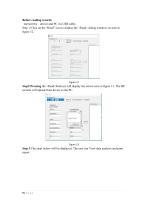
Before reading records Connect the device and PC via USB cable. Step 1:Click on the “Read” icon to display the dialog windows as seen in figure 12. Step2:Pressing the button,it will display the screen seen in figure 13. The BP records will upload from device to the PC. Step 3:The chart below will be displayed. The user can View data analysis and print report
Open the catalog to page 9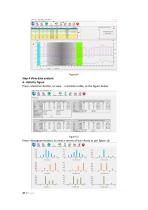
Step 4 View data analysis A. statistics figure Press button, to view a statistics table, as the figure below Press button, to view a serires of bar-charts as per figure 16.
Open the catalog to page 10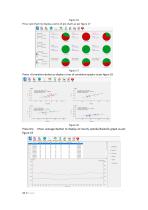
Figure 16 Press to display a series of pie-charts as per figure 17 Prerss button,to display a sires of correlation graphs as per figure 18 button to display an hourly systolic/diastolic graph as per
Open the catalog to page 11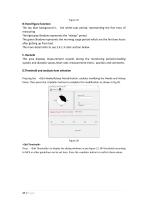
B.Trend figure function The sky blue background is the white-coat period, representing the first hour of measuring The light gray Shadow represents the “asleep” period The green Shadow represents the morning surge period which are the first two hours after getting up from bed. The more detail refer to see 2.4.1.3 color section below. C. Records This area displays measurement records during the monitoring period,including systolic and diastolic values,heart rate, measurement times , position and comments D.Threshold and analysis item selection Pressing the button, enables modifying the Awake and...
Open the catalog to page 12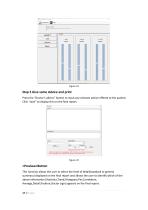
Step 5 Give some Advice and print Press the “Doctor’s advice” button to input any relevant advice offered to the patient. Click “save” to display this on the final report. Button This function allows the user to select the level of detail(standard or general summary) displayed on the final report and allows the user to identify which of the above information (Statistics,Trend,Histogram,Pie,Correlation, Average,Detail,Position,Doctor sign) appears on the final report. 13 |
Open the catalog to page 13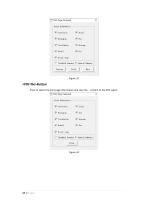
Button Press to select the print page information and save the
Open the catalog to page 14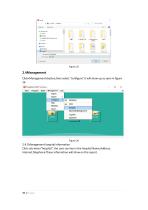
2.4Management Clickbutton,then select “configure”.it will show up as seen in figure 26 2.4.1Management hospital information Click sub-menu”hospital”, the user can key in the hospital Name,Address, Internet,Telephone.These information will show on the report.
Open the catalog to page 15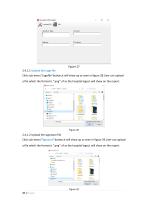
2.4.1.1 Upload the Logo file Click sub-menu”Logofile”button,it will show up as seen in figure 28.User can upload a file which the format is “.png” of as the hospital logo,it will show on the report. 2.4.1.2 Upload the signature file Click sub-menu”Signature”button,it will show up as seen in figure 29.User can upload a file which the format is “.png” of as the hospital logo,it will show on the report.
Open the catalog to page 16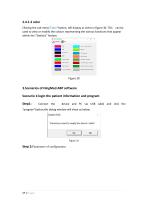
2.4.1.3 color Clicking the sub-menu”Color”button, will display as seens in figure 30. This can be used to view or modify the colours representing the various functions that appear within the “Statistic” feature. 3.Scenarios of HingMed ABP software Scenario 1:login the patient information and program Step1: device and PC via USB cable and click the “program”button,the dialog window will show as below.
Open the catalog to page 17All Hingmed Medical catalogs and technical brochures
 Hingmed DBP-01P Pass FDA
2 Pages
 ABPM software
39 Pages
 Hingmed Profile and Catalog
26 Pages
 Hingmed ABPM ABP-03
7 Pages
 ABP-03
2 Pages




- Analysis software
- Blood pressure monitor
- Automatic blood pressure monitor
- Tablet computer software
- Windows software
- Blood pressure monitor with adult cuff
- Electronic ventilator
- Non-invasive ventilator
- Hospital software
- Oscillometric blood pressure monitor
- Automated software
- Ventilator with touch screen
- Blood pressure monitor with built-in cuff
- Portable ventilator
- Intensive care ventilator
- Emergency ventilator
- CPAP ventilator
- Blood pressure monitor with rechargeable battery
- Cardiology software
- Data analysis software