


ac30_handbook

ac30_handbook
The AG-AC30 camera recorder supports full HD and SDTV formats, featuring a 1/3.1 inch, 60.3M pixel imager, and a wide-angle 29.5mm lens. It records in MP4/MOV formats for full HD and AVCHD for lower bitrate HD/SD images, with specific resolutions, frame rates, and bit-rates for 59.94Hz and 50Hz models.
This section outlines the major IN/OUT connectors, record mode settings, audio input settings, and SD memory card requirements. It includes instructions for tripod mounting, emphasizing the use of screws shorter than 5.5mm to prevent damage.
The document provides an overview of MENU settings, including CAMERA SETUP, SYSTEM MODE, USER SW, SW SETUP, RECORD SETUP, AUDIO SETUP, OUTPUT SETUP, DISP SETUP, OTHER FUNCTIONS, and MAINTENANCE, detailing specific settings and options.
This section explains focus assist features, dual memory card slots, built-in LED light usage, and the time stamp feature, offering advanced operational knowledge.
Details on enhancing object texture through detail enhancement and color adjustment are provided, allowing users to fine-tune image quality.
Instructions for connecting the camera to a PC/Mac, understanding the SD memory card file structure, and folder naming for MOV/MP4 folders are included.
The appendix provides additional information on recording times for different video settings, battery runtime, output signal formats, and genuine accessories.
- Hybrid O.I.S: An electrical image stabilizer working with the optical stabilizer, toggleable ON or OFF.
- Slow Shutter: Auto slow shutter mode adjustable for low light conditions.
- Focus Assist: Options include EXPAND, PEAKING, or BOTH, with customizable peaking color and level.
- Area Mode: Assignable functions for LCD tapping, such as focus or iris control.
- SW Setup: Settings for zebra mode, color bars, and zoom functions.
- Record Setup: Media selection, dual slot functions, interval recording, and super slow mode options.
- Audio Setup: Controls for audio levels, low cut filters, and auto level control linking.
- Output Setup: Video resolution, remote recording, and audio output mode settings.
- Display Setup: Configurations for zebra patterns, markers, guide lines, and other display options.
- Other Functions: Media formatting, clock settings, and LED light controls.
- Focus Assist Features: Manual focus mode with image magnification and peaking highlights.
- Dual Memory Card Slots: Supports relay and simultaneous recording modes.
- Built-in LED Light: Adjustable lighting with diffusion and color conversion filters.
- Time Stamp Feature: Embeds date/time information in footage, with limitations.
- Detail Enhancement: Adjusts sharpness and texture of objects, with settings for detail signal strength.
Adjusting sharpness affects image border clarity. Increasing sharpness (+5) sharpens borders, while decreasing sharpness (-5) softens them.
- Brightness and Detail Signal: Maximum detail signal level adjustment, with no detail signal on the edge.
- Color Adjustment: Color level adjustable from -5 to +5, affecting overall color intensity.
- Connecting to PC/Mac: Connect via USB2.0 for rapid clip transfer, involving setting the camera to USB mode and using a USB2.0 cable.
- File Structure: SD card stores file types under the PRIVATE folder, including AVCHD, MOV, and MP4 formats. Copy the entire PRIVATE folder to ensure clip playability.
- Folder Naming: MOV/MP4 folder names determined by resolution, framerate, video format, and camera number.
- Recording Time: Detailed recording times for different video settings and memory card capacities for 59.94Hz and 50Hz models.
- Battery Runtime: Battery operation times and charging durations for various models.
- Output Signal Format: Output signal formats for different settings and resolutions for 59.94Hz and 50Hz models.
- Genuine Accessories: List of genuine accessories, including battery packs, adaptors, and filters, with part numbers.
The document was first issued in May 2017 as version 1.00E.
Catalog excerpts

HD camera recorder Book
Open the catalog to page 1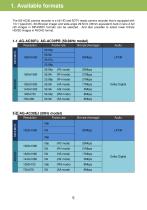
The AG-AC30 camera recorder is a full HD and SDTV ready camera recorder that is equipped with 1/3.1 type(inch), 60.3M pixel imager and wide-angle 29.5mm (35mm equivalent) built-in lens A full HD images in MP4/MOV formats can be selected. And also possible to select lower bitrate HD/SD images in AVCHD format.
Open the catalog to page 5
2. Preparation before Shooting
Open the catalog to page 6
2. Preparation before shooting 2-1. Major IN/OUT connectors Image resolution of HDMI and VIDEO OUT signals vary depend on the system settings. See P.43 for the details. Battery charge indicator 12V DC IN (Capable of battery charge) Headphones out (Ø3.5mm stereo mini jack) Wired remote terminals Analog audio & video out USB2.0 DEVICE terminal (Type micro-B connector) For connection between a computer USB2.0 HOST terminal (Type-A connector) For external storage device connection. HDMI output (Type-A connector)
Open the catalog to page 7
2. Preparation before shooting 2-2. Record mode settings Set the resolution and frame-rate, etc. with MENU > “SYSTEM MODE” where the following menu items are available. MENU > SYSTEM MODE - REC MODE : MOV, MP4 or AVCHD - REC FORMAT: Choose a combination of the number of pixels and bitrate (see P.4) 2-3. Audio input settings The AG-AC30 can handle up to 2 channels of audio and record them. 1. Set CH SELECT switches (A) for audio source selection (built-in MIC / external) 2. When external input is chosen, set attenuation type (LINE, MIC) and phantom powering option with INPUT1/2 switches (B). Input...
Open the catalog to page 8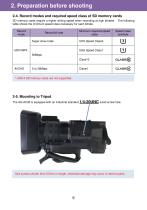
2-4. Record modes and required speed class of SD memory cards SD memory cards require a higher writing speed when recording at high bitrates. The following table shows the minimum speed class necessary for each bitrate. Record mode * UHS-II SD memory cards are not supported. Use screws shorter than 5.5mm in length, otherwise damage may occur to internal parts.
Open the catalog to page 9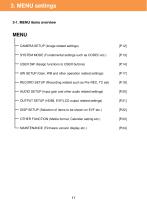
3-1. MENU items overview MENU CAMERA SETUP (Image related settings) SYSTEM MODE (Fundamental settings such as CODEC etc.) USER SW (Assign functions to USER buttons) SW SETUP (Gain, WB and other operation related settings) RECORD SETUP (Recording related such as Pre-REC, TC set) AUDIO SETUP (Input gain and other audio related settings) OUTPUT SETUP (HDMI, EVF/LCD output related settings) DISP SETUP (Selection of items to be shown on EVF etc.) OTHER FUNCTION (Media format, Calendar setting etc.) MAINTENANCE (Firmware version display etc.)
Open the catalog to page 11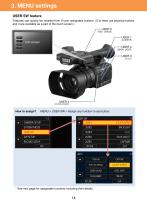
3. MENU settings USER SW feature Features can quickly be recalled from 9 user assignable buttons. (5 of them are physical buttons and 4 are available as a part of the touch screen.) USER 5 (REC CHECK) USER 2 (BACK LIGHT) USER 4 (FOCUS ASSIST) MENU > USER SW > Assign any function to any button. * See next page for assignable functions including their details.
Open the catalog to page 14
USER SW The following table shows all functions that can
Open the catalog to page 15
USER SW <continued> The following table shows all functions that can be assigned to the USER buttons.
Open the catalog to page 16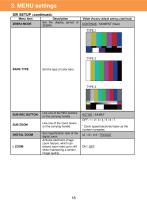
3. MENU settings SW SETUP Menu item ZEBRA MODE Description Set the display period of ZEBRA. Value (Factory default setting underlined) CONTINUE / MOMENT (5sec) TYPE 1 BARS TYPE Set the type of color bars. Use one of the REC buttons on the carrying handle. Use one of the zoom levers on the carrying handle. DIGITAL ZOOM Set magnification ratio of the digital zoom. Activate electronic image zoom feature, which can extend zoom ratio up to x40 while maintaining a certain image quality. * Zoom speed becomes faster as the number increases. x2 / x5 / x10 / TOGGLE
Open the catalog to page 18
4. Understanding advanced features
Open the catalog to page 25
4. Understanding advanced features 4-1. Understanding Focus assist features How to use 1. Set the FOCUS mode to MANUAL. 2. Press the FOCUS ASSIST button located at the left side of the unit or assign the FOCUS ASSIST function to any assignable USER buttons. (MENU > USER SW > any USER button number : FOCUS ASSIST1 or FOCUS ASSIST2) FOCUS ASSIST button 3. Choose assist type to be recalled with the USER button. (MENU > SW SETUP > FOCUS ASSIST1 or 2: EXPAND / PEAKING / BOTH) Part of image can be magnified from 3 to 10 times. The position to be magnified can be specified by tapping the touch screen)....
Open the catalog to page 26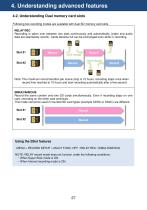
4. Understanding advanced features 4-2. Understanding Dual memory card slots Following two recording modes are available with dual SD memory card slots. RELAY REC Recording is taken over between two slots continuously and automatically (video and audio data are seamlessly record). Cards became full can be exchanged even while in recording. Card change Card change Note: The maximum record duration per scene (clip) is 10 hours, recording stops once when record time reached at 10 hours and start recording automatically after a few second. SIMULTANEOUS Record the same content onto two SD cards simultaneously....
Open the catalog to page 27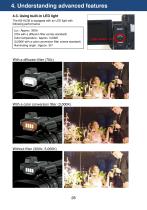
4. Understanding advanced features 4-3. Using built-in LED light The AG-AC30 is equipped with an LED light with following performance Lux : Approx. 300lx (70lx with a diffusion filter comes standard) Color temperature : Approx. 5,000K (3,000K with a color conversion filter comes standard) Illuminating angle : Approx. 30° With a diffusion filter (70lx) With a color conversion filter (3,000K) Light switch
Open the catalog to page 28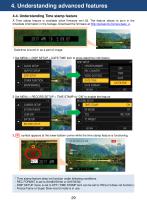
4. Understanding advanced features 4-4. Understanding Time stamp feature A Time stamp feature is available since firmware ver1.03. The feature allows to burn in the time/date information in the footage. Download the firmware at http://panasonic.biz/sav/pass_e. Date/time is burnt-in as a part of image. 1. Set MENU > DISP SETUP > DATE/TIME item to show date/time information. 2. Set MENU > RECORD SETUP > TIME STAMP to “ON” to enable the feature. 3. R symbol appears at the lower-bottom corner while the time stamp feature is functioning. * Time stamp feature does not function under following conditions....
Open the catalog to page 29
5. Understanding CAMERA SETUP operations
Open the catalog to page 30
5. Understanding CAMERA SETUP operations 5-1. Expressing the texture of objects (detail enhancement) When expressing the outline or surface texture of an object, faint reflection of light may be intensified or, to the contrary, the picture may look blurred. This is a phenomenon caused by the strength / weakness of Detail signal to intensify the video signal for the object’s outline. Adjustment of Detail signal can make the object’s luster or texture look more natural. SHARPNESS +5
Open the catalog to page 31All I-Pro catalogs and technical brochures
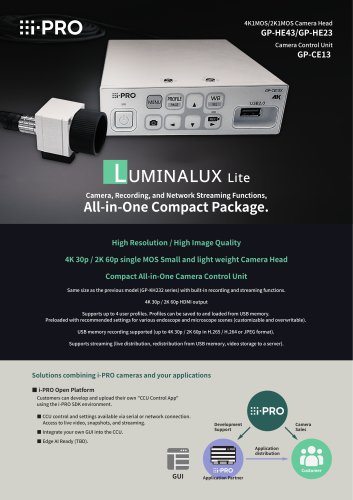 LUMINALUX Lite
2 Pages
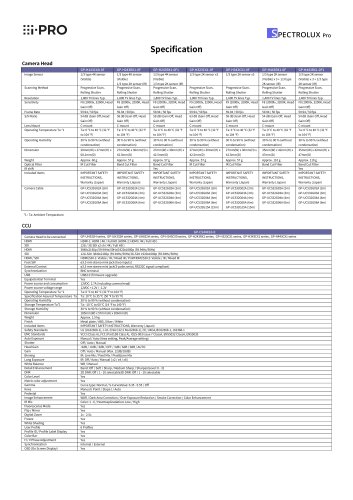 SPECTROLUX
1 Page
Archived catalogs
 4K Micro Camera Brochure
4 Pages
 Industrial Medical Vision
12 Pages
 AG-MDR25 and AG-MDC20
6 Pages
 The 4K 4MOS solution
2 Pages
 4K OEM Brochure GP-UH532
2 Pages
 POVCAM Brochure IMV
3 Pages
 EVA1 book
92 Pages
 VariCam LT
8 Pages
 VariCam lineup
20 Pages
 EVA1
EVA120 Pages
 Lineup
76 Pages
 AG-AC30
4 Pages
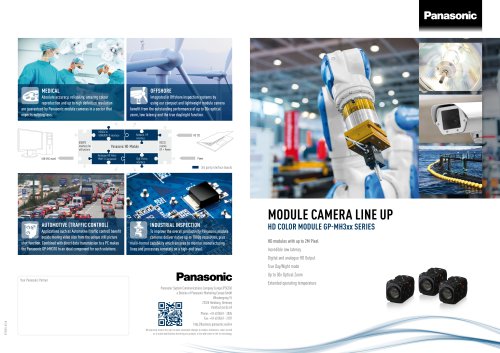 GP-MH310
2 Pages
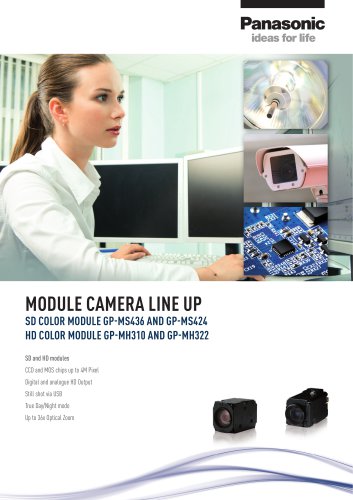 MODULE CAMERA LINE UP
4 Pages


- CMOS camera
- Camera with USB port
- Medical camera
- Full HD camera
- Surgical camera
- Portable camera
- Ultra-high resolution camera
- Digital camera head
- Camera module
- Digital camera module
- CMOS camera head
- CMOS camera module
- Full HD camera head
- Ophthalmology camera
- Medical camera module
- Surgical camera head
- Camera with zoom
- Medical camera head
- Infrared camera