
- Catalogs
- Inteware Co., Ltd
- OrthoAnalysis

OrthoAnalysis

OrthoAnalysis
OrthoAnalysis is a digital orthodontic treatment planning software designed to simulate tooth movement before treatment. It enhances treatment accuracy and precision, intended for use by trained orthodontic professionals.
Minimum requirements include an Intel Core i7 8th generation CPU, 16 GB RAM, Intel UHD Graphics 630, and 500GB SSD. Suggested specifications are an Intel Core i7 10th generation CPU, 32 GB RAM, NVIDIA GeForce GTX1060, and 1 TB SSD. The software operates on Windows 10 64-bit with a monitor resolution of 1920 x 1080.
The interface consists of a main menu, function panel, workflow bar, 3D view window, and visualization toolbar, which provides tools for project management, patient information, and visualization options.
Allows management of patient data and treatment orders, including adding, editing, or deleting patient information and managing works associated with each patient.
Involves phases such as Position, Edit, Define, Adjust, and Post-Process, with tasks like defining occlusion, aligning models, trimming, and editing meshes.
Covers creating setup plans, treatment planning, and generating reports, including tools for attachment design, pontic design, and auxiliary tools.
The software should only be used by qualified orthodontic professionals to avoid ill-fitting devices that could cause discomfort or harm to patients.
Instructions for configuring user account control, NVIDIA settings, DPI settings, and hardware-accelerated GPU settings to ensure optimal performance.
Supports importing model scan files in *.ply or *.obj format for colored models, with various model types supported such as Smile Scan and Occlusion Plane.
Patient photos can be used to assist in clinical evaluations.
Users should check clinical situations matching the patient's oral conditions and add comments if necessary.
Set deadlines for cases and select the product to be made before submission.
Existing projects can be opened via the Project Manager by selecting a patient and the corresponding work from the Work List.
Users can import order files from AirDental in zip or myo formats and export project files in myo format.
Includes defining occlusion, aligning images and models, trimming, deforming, editing meshes, and selecting areas.
Involves defining occlusion by marking points on the model and aligning photos with tooth models using ceph images and profile photos.
Focuses on ensuring model quality by trimming redundant data and editing mesh data.
Involves defining teeth by placing mesial and distal points on each tooth and setting tooth axes.
Adjusts the cervical line using the 'Adjust Margin' function panel.
Involves setting the rotation center of the tooth and deforming the segmented model.
Manage setup plans, simulate orthodontic treatments, and plan in stages.
Create setup plans, manage treatment stages and steps, and use tools for tooth movement and alignment.
Create interpolating steps to reach desired tooth positions, either automatically or manually.
Outlines the process of creating interpolating steps for tooth movement across different stages.
Users can design attachments by selecting a stage and setting placement types.
Explains how to design pontics for missing or extracted teeth.
Used to create space in overcrowded teeth, with options for viewing overlapping values and adjusting blade settings.
Instructions for extracting teeth, including selecting teeth and setting their status.
Describes tools like Arch Wire for guiding tooth movement and Model Comparison for comparing different stages or steps.
Offers analyses like tooth width and Bolton analysis, with options to edit and measure using control points.
Users can generate treatment planning reports, wax up models, and output models for printing.
Allows modification of label components and deletion of labels.
Optional feature for customizing attachment appearance.
Access the Setup manager panel to create shell aligners, with options to define regions and adjust shell boundaries.
Catalog excerpts

User Guide Version 2022 V 1.0 Taiwan Soft Power
Open the catalog to page 1
Copyright © by 2022 INTEWARE Co., Ltd. All Rights Reserved. OrthoAnalysis User Guide 2022 v1.0. English language version. (Updated 29, April 2024) No part of this manual may be reproduced, photocopied, stored in a retrieval system, or transmitted in any manner (electronic or mechanical) for any purpose other than the customer’s normal usage, without the prior written permission of Inteware Co., Ltd. This manual is subject to change without prior notice. For further inquiries, contact your sales representative or customer service.
Open the catalog to page 2
Taiwan Soft Power
Open the catalog to page 3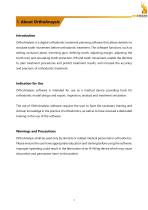
1. About OrthoAnaysis Introduction OrthoAnalysis is a digital orthodontic treatment planning software that allows dentists to simulate tooth movement before orthodontic treatment. The software functions, such as setting occlusion plane, trimming gum, defining tooth, adjusting margin, adjusting the tooth root, and simulating tooth extraction, IPR and tooth movement, enable the dentists to plan treatment procedures and predict treatment results, and increase the accuracy and precision of orthodontic treatment. Indication for Use OrthoAnalysis software is intended for use as a medical device providing...
Open the catalog to page 5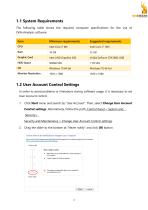
Taiwan Soft Power 1.1 System Requirements The following table shows the required computer specifications for the use of OrthoAnalysis software. In order to avoid problems or limitations during software usage, it is necessary to set User Account control. 1. Click Start menu and search by "User Account". Then, select Change User Account Control settings. Alternatively, follow the path: Control Panel > System and Security> Security and Maintenance > Change User Account Control settings. 2. Drag the slider to the bottom at "Never notify" and click OK button.
Open the catalog to page 6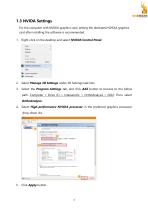
Taiwan Soft Power 1.3 NVIDA Settings For the computer with NVIDIA graphics card, setting the dedicated NVIDIA graphics card after installing the software is recommended. 1. Right-click on the desktop and select NVIDIA Control Panel. Paste shortcut Undo Rename Ctrl+Z B^l NVIDIA Control Panel H Screen resolution iflT Personalise Select Manage 3D Settings under 3D Settings task lists. Select the Program Settings tab, and click Add button to browse to the below path: Computer > Drive (C) > IntewareInc > OrthoAnalysis > 2022. Then, select Select High-performance NVIDIA processor in the preferred graphics...
Open the catalog to page 7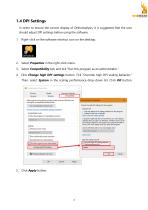
Taiwan Soft Power 1.4 DPI Settings In order to ensure the correct display of OrthoAnalysis, it is suggested that the user should adjust DPI settings before using the software. 1. Right-click on the software shortcut icon on the desktop. 2. Select Properties in the right-click menu. 3. Select Compatibility tab, and tick "Run this program as an administrator." 4. Click Change high DPI settings button. Tick "Override high DPI scaling behavior." Then, select System in the scaling performance drop-down list. Click OK button. 5. Click Apply button.
Open the catalog to page 8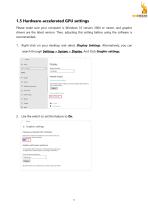
Taiwan Soft Power Please make sure your computer is Windows 10 version 2004 or newer, and graphic drivers are the latest version. Then, adjusting this setting before using the software is recommended. 1. Right-click on your desktop and select Display Settings. Alternatively, you can search through Settings > System > Display. And Click Graphic settings. Reduce latency and improve performance. You'll need to restart your PC to have your changes take effect Graphics performance preference Choose between better performance or battery life when using an app. You might need to restart the app for...
Open the catalog to page 9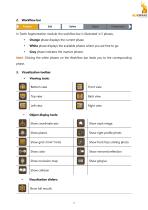
In Tooth Segmentation module, the workflow bar is illustrated in 5 phases. Orange phase displays the current phase. White phase displays the available phases where you are free to go. Gray phase indicates the inactive phases. Note: Clicking the white phases on the Workflow bar leads you to the corresponding phase. 3. Visualization toolbar Viewing tools: Bottom view Front view Back view Left view Right view Object display tools: Show coordinate axis Show ceph image Show planes Show right profile photo Show front face smiling photo Show color Show mirrored reflection Show gingiva Visualization...
Open the catalog to page 11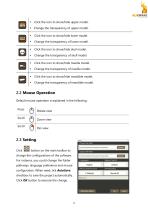
Click the icon to show/hide upper model. Change the transparency of upper model. Click the icon to show/hide lower model. Change the transparency of lower model. Click the icon to show/hide skull model. Change the transparency of skull model. Click the icon to show/hide maxilla model. Change the transparency of maxilla model. Click the icon to show/hide mandible model. Change the transparency of mandible model. 2.2 Mouse Operation Default mouse operation is explained in the following: 2.3 Setting Click hLjd button on the main toolbar to change the configurations of the software. For instance,...
Open the catalog to page 12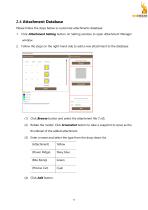
Taiwan Soft Power Please follow the steps below to customize attachments database: 1. Click Attachment Setting button on Setting window to open Attachment Manager window. 2. Follow the steps on the right-hand side to add a new attachment to the database: (1) Click Browse button and select the attachment file (*.stl). (2) Rotate the model. Click Screenshot button to take a snapshot to serve as the thumbnail of the added attachment. (3) Enter a name and select the type from the drop-down list.
Open the catalog to page 13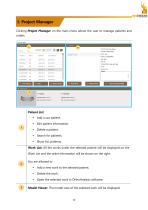
Taiwan Soft Power Clicking Project Manager on the main menu allows the user to manage patients and orders.
Open the catalog to page 14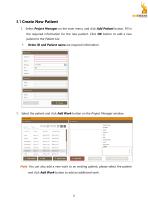
Select Project Manager on the main menu, and click Add Patient button. Fill in the required information for the new patient. Click OK button to add a new patient to the Patient List. Order ID and Patient name are required information. 1. Select the patient and click Add Work button on the Project Manager window. Note: You can also add a new work to an existing patient, please select the patient and click Add Work button to add an additional work.
Open the catalog to page 15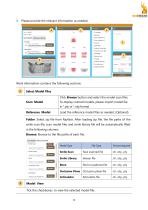
Taiwan Soft Power Work information contains the following sections: Tick the checkboxes to view the selected model file.
Open the catalog to page 16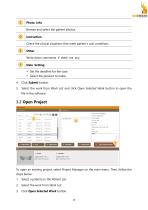
Photo Info Browse and select the patient photos. Instruction Check the clinical situations that meet patient’s oral conditions. Other Write down comments if there are any. Date Setting Set the deadline for the case. Select the product to make. 4. Click Submit button. Select the work from Work List and click Open Selected Work button to open the file in the software. To open an existing project, select Project Manager on the main menu. Then, follow the steps below: 1. Select a patient on the Patient List. Select the work from Work List. Click Open Selected Work button.
Open the catalog to page 17All Inteware Co., Ltd catalogs and technical brochures
 EZCAD 2022
73 Pages
 Implant Planning
71 Pages
 Air Dental
20 Pages
- Analysis software
- Dental software
- 3D printer
- Treatment software
- Capture software
- Curing light
- AI-assisted software
- Artificial intelligence software
- Simulation software
- Dental 3D printer
- Import software
- 3D software
- Desktop 3D printer
- Vat photopolymerization 3D printer
- Teeth software
- Model trimmer
- DLP 3D printer
- Mouth software