
- Catalogs
- NORAV Medical
- Mobile ECG


Mobile ECG
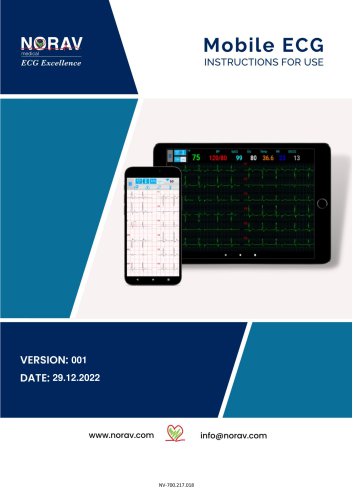
Mobile ECG
The document provides comprehensive instructions for using the Mobile ECG device, including safety guidelines, intended use, and device indications and contraindications. It emphasizes the importance of warnings, cautions, and notes to ensure safety and optimal performance.
Norav Medical GmbH, based in Mainz-Kastel, Germany, offers contact details for support.
The system is a decision support tool for trained medical professionals and should not be the sole basis for clinical decisions. Norav offers a one-year warranty against manufacturing defects, excluding expendable items like electrodes and cables.
The device complies with EMC Directive 89/336/EEC and standards for ventricular late potentials analysis, conforming to MDD 93/42/EEC and IEC standards.
The document describes system specifications and recommended setup for optimal performance, including Android OS, 2 GHz Quad Core CPU, 4 GB memory, and Bluetooth 4.0.
Instructions for unpacking, installing the app, pairing the device, and starting the application are provided, along with a list of package contents.
Details on attaching leads, entering patient information, monitoring tests, and viewing reports are included. Steps for sharing and uploading reports are also provided.
Guidance on handling archived test data and configuring ECG display settings, device settings, user settings, and email settings is included. Information on data filters, Bluetooth settings, and FTP configurations is provided.
The document details features like ECG streaming, integration with external devices via NFC, and performing tests with additional measurements like BP and SpO2. Troubleshooting guidance for common issues is also included.
Recommendations include ensuring proper configuration of device settings and data filters to optimize ECG readings, regularly updating patient records, and managing archived tests for accurate data tracking.
Instructions for enabling ECG streaming, setting streaming intervals, defining export directories, and enabling external measurements are provided. The document also covers enabling patient details on the test screen and setting up the AURA device for additional measurements.
The document provides instructions for using ENWA technology for real-time ECG monitoring and data acquisition via Android devices, including setting up and using the DiCaster app for streaming and downloading ECG data in the MFER format.
Catalog excerpts
Mobile ECG Instructions for Use Revision: 001 Copyright © Norav, December 2022 All rights reserved. This manual contains proprietary information, which is protected by copyright, all rights reserved. Reproduction, adaptation, or translation without prior written permission is prohibited, except as allowed under the copyright laws (e.g., educational purposes). Norav Medical GmbH Christof-Ruthof-Weg 10 D55252 Mainz-Kastel Germany E-Mail: [email protected] This system is intended as a decision support system for persons who have received appropriate medical training and should not be used as a sole...
Open the catalog to page 2
• Defibrillation protection: Built in for ECG cable lead wires with "Banana" and "Clip" ends.
Open the catalog to page 3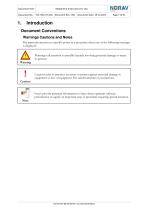
Pay particular attention to specific points in a procedure when one of the following messages is displayed: /1 \ Warnings call attention to possible hazards involving potential damage or injury to persons. ! Cautions refer to practices necessary to protect against potential damage to equipment or loss of equipment. Pay careful attention to instructions. Notes provide pertinent information to help obtain optimum software performance or signify an important step or procedure requiring special attention.
Open the catalog to page 7
AV The NR ECG device uses battery for main power supply (unless connected via f ■ \ the USB port). It is also sensitive to electrical interference. To prevent possible ^ . injury, read this page carefully prior to installing the device. • US Federal Law restricts this device to sale by, or on the order of, a physician. • Other devices which are part of the system must meet the requirements of the Standard for Information Technology Equipment (IEC 60950) and the Standard for Electrical Medical Devices (IEC 60601-1) • Computers and printers used with Medical Devices should be evaluated for EN 60950-1,...
Open the catalog to page 9
• Operation only by trained medical staff. • This device complies with Part 15 of the FCC Rules. Operation is subject to the following two conditions: a. This device may not cause harmful interference. b. This device must accept any interference received, including interference that may cause undesired operation. The manufacturer is not responsible for any Radio or TV interference caused by unauthorized modifications to this equipment. Such modifications may invalidate user authority to operate the equipment. Install hardware only after software installation. ECG is intended to disclose either...
Open the catalog to page 10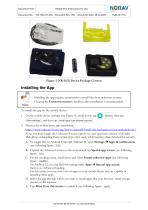
Installing the app requires permission to install files from unknown sources. Clearing the Unknown sources checkbox after installation is recommended. To install the app on the mobile device: 1. On the mobile device settings (see Figure 4), scroll down, tap , and then tap More settings Install apps from external sources 2. Please refer to third party app installation: https: / /www.makeuseof.com/tag/how-to-manually-install-side-load-apps-on-your-android-device /. Now, you must toggle the Unknown Sources option on a per-app basis, instead of globally. This allows sideloading from certain apps...
Open the catalog to page 13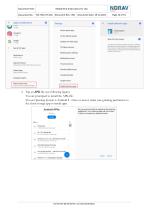
3. Tap an APK file (see following figure). You are prompted to install the APK file. If your Operaing System is Android 8 - Oreo or newer, make sure granting permission to the cloud storage app to install apps. 7.4 MB. modified 4 weeks ago nh_1 0 O.debug apk 30 I MB. modified S months ago camera_nx_v7 3.1 _Z.xhromloop com apk
Open the catalog to page 14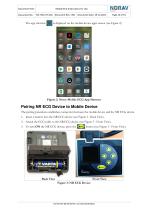
is displayed on the mobile device apps screen (see Figure 2). Music Netflix Norav Mobile Notepad (I Q ^ TSf Optimizer Outlook PalGate PayBox Phone Phone Clone Photo PIP Photos Figure 2: Norav Mobile ECG App Shortcut The pairing procedure establishes connection between the mobile device and the NR ECG device. 1. Insert a battery into the NR ECG device (see Figure 3 - Back View). 2. Attach the ECG cable to the NR ECG device (see Figure 3 - Front View).
Open the catalog to page 15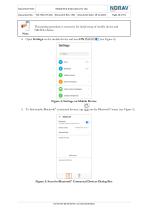
This pairing procedure is necessary for initial setup of mobile device and NR ECG device. 4. Open Settings on the mobile device and turn ON Mobile network More connections Home screen & wallpaper Display & brightness Figure 4: Settings on Mobile Device 5. To find nearby Bluetooth® connected devices, tap on the Bluetooth® menu (see Figure 5).
Open the catalog to page 16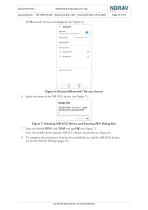
All Bluetooth® devices are displayed (see Figure 6). 6. Select the name of the NR ECG device (see Figure 7). To pair with nr-1207-e type the devices required PIN 7. Type the default PIN Code 12345 and tap OK (see Figure 7). Now the mobile device and the NR ECG device are paired (see Figure 6). 8. To complete the connection between the mobile device and the NR ECG device, see Section Device Settings (page 49).
Open the catalog to page 17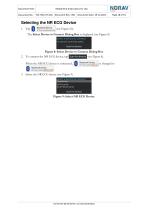
The Select Device to Connect Dialog Box is displayed (see Figure 8). select a device to connect No devices have been paired Figure 8: Select Device to Connect Dialog Box When the NR ECG device is connected, 3. Select the NR ECG device (see Figure 9). Paired Devices Figure 9: Select NR ECG Device
Open the catalog to page 18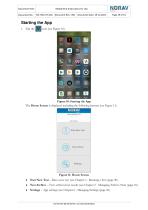
Figure 11: Home Screen ♦ Start New Test — Run a new test (see Chapter 4 - Running a Test (page 20). ♦ Test Archive — View archived test results (see Chapter 5 - Managing Archive Tests (page 35). ♦ Settings — App settings (see Chapter 6 - Managing Settings (page 36).
Open the catalog to page 19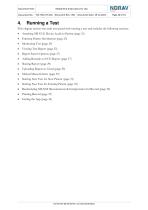
This chapter reviews the tasks associated with running a test and includes the following sections: • Attaching NR ECG Device Leads to Patient (page 21) • Entering Patient Information (page 23) • Monitoring Test (page 24) • Viewing Test Report (page 25) • Report Screen Options (page 27) • Adding Remarks to ECG Report (page 27) • Sharing Report (page 29) • Uploading Report to Cloud (page 29) • Manual Measurements (page 30) • Starting New Test for New Patient (page 31) • Starting New Test for Existing Patient (page 32) • Recalculating MEANS Measurements & Interpretation for Record (page 32) • Printing...
Open the catalog to page 20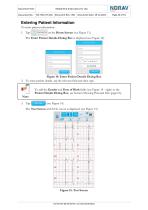
Document Title: NV-700.217.018 Document Rev.: 001 Document Date: 29.12.2022 Entering Patient Information To enter patient information: 1. Tap on the Home Screen (see Figure 11). The Enter Patient Details Dialog Box is displayed (see Figure 14). Figure 14: Enter Patient Details Dialog Box 2. To enter patient details, tap the relevant field and then type. To add the Gender and Date of Birth fields (see Figure 14 - right) to the Patient Details Dialog Box, see Section Showing Personal Info (page 63). Note 3. Tap The Test Screen with ECG waves is displayed (see Figure 15). Figure 15: Test Screen
Open the catalog to page 23All NORAV Medical catalogs and technical brochures
 Norav User Guide
12 Pages
 NEMS-Q
44 Pages
 NEMS-A
33 Pages
 NBP One Ambulatory Blood Pressure
35 Pages
 NR SERIES
40 Pages
 PC-ECG1200
143 Pages
 NECG SE-1200 Pro
81 Pages
 NECG SE-301
69 Pages
 Telemetry Tango Mobile
4 Pages
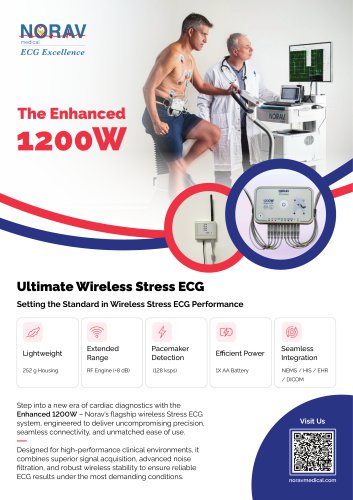 Enhanced 1200W
4 Pages
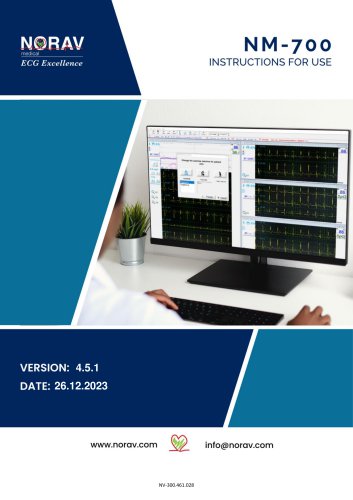 Telemetry
30 Pages
Archived catalogs
 Stress Test ECG
4 Pages
 Resting ECG
6 Pages
 Holter
4 Pages
 ECG Management System
2 Pages
 Thermal Printers
4 Pages
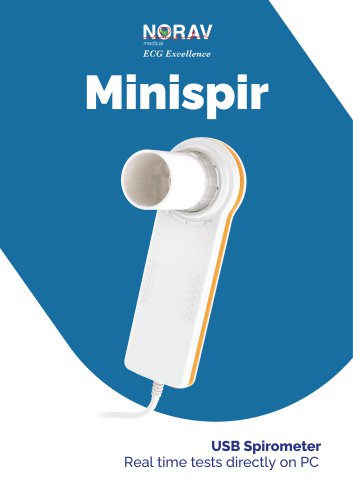 System Spirometer Minispir
6 Pages

- Medical dolly
- Hospital trolley
- Medical device trolley
- Anodized aluminum trolley
- Analysis software
- Plastic trolley
- Patient monitor
- SpO2 monitor
- Visualization software
- Equipment trolley
- Tablet computer software
- Tablet PC software
- Reporting software
- Medical pulse oximeter
- Windows software
- Height-adjustable trolley
- Blood pressure patient monitor
- NORAV digital electrocardiograph
- NORAV electrocardiograph
- Compact trolley