
- Catalogs
- NORAV Medical
- NEMS-A


NEMS-A
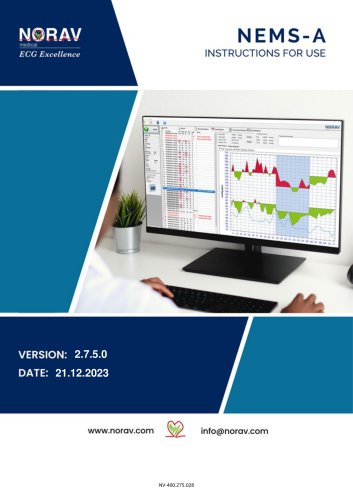
NEMS-A
This document provides comprehensive instructions for using the NEMS-A software version 2.7.5.0, designed for medical professionals. It includes proprietary information and outlines the intended use of the software and associated devices.
The software is manufactured by Norav Medical GmbH, located in Mainz-Kastel, Germany. Contact details are provided for further assistance.
The NEMS-A system is a decision support tool and should not be solely relied upon for clinical decisions. A one-year warranty is offered against manufacturing defects, excluding expendable items. Customer modifications or damage void the warranty.
Warnings, cautions, and notes are used to emphasize important information regarding potential hazards, equipment protection, and optimal software performance.
The software is intended for managing patient records and tests, including ECG, Holter, and ABPM devices, with features for real-time test status display and report management.
The package includes installation media, a software key, and instructions. It lists compatible applications and devices, along with recommended PC specifications.
The software is compatible with Windows 10/11 and requires administrative rights for installation.
NEMS-A is a comprehensive management solution for cardiac medical devices, supporting various ECG and blood pressure records with features like patient and test record management, advanced search capabilities, and device management.
Users must confirm the database location, with options to create a new database or select an existing one.
To open the application, double-click the desktop icon. The main screen and menu bar offer options for importing records, opening directories, and exiting the application.
The toolbar facilitates searching for tests, managing patient information, downloading recordings, and exiting the application. It also includes options for viewing the menu bar and setting up the application.
This section allows users to search, sort, and manage records, including viewing, printing, exporting, copying, moving, deleting, and reassigning records.
Instructions are provided for copying records for backup or review and moving records to another location outside the NEMS-A system.
Users can delete records or reassign them to different patients if initially assigned incorrectly.
Records can be reviewed within the relevant application, allowing for remarks to be added.
This module manages patient information, including editing details, adding new patients, deleting patients, and moving patients between groups. It also covers creating new tests and viewing or comparing patient tests.
This tab allows for scanning connected recorders and downloading patient details to NEMS-A.
Setup options include configuring the workspace, view settings, and communication protocols like GDT for transferring test results.
The document includes technical details such as database names, default directories, and file locations for patient data.
The Settings.XML file contains adjustable parameters for data import/export and database access. GDT interface settings include folder paths and filename conventions for communication with EMR systems.
Steps for preparing the Holter recorder for a new patient and downloading ECG recordings are outlined.
Instructions for starting new ECG tests and reviewing ECG records using the PC-ECG 1200 software.
Details on connecting to ABPM devices, preparing recorders, downloading recordings, and reviewing results. Customization options for report headers, footers, and digital signatures are included.
Guidelines for selecting patients and conducting tests using the monitoring applications.
Instructions for installing and using the NSpiro™ software for spirometry tests.
Procedures for importing and exporting PDF reports, including filename formats. The GDT interface enables communication with EMR programs, allowing for patient data management and medical signal handling.
Steps for calling NEMS-A from EMR, performing new tests, and displaying existing procedures via GDT.
Catalog excerpts
VERSION: 2.7.5.0 DATE: 21.12.2023 www.norav.com w' [email protected]
Open the catalog to page 1
NEMS-A Instructions for Use For software version: 2.7.5.0 Copyright © Norav, January 2024 All rights reserved. This manual contains proprietary information, which is protected by copyright, all rights reserved. Reproduction, adaptation, or translation without prior written permission is prohibited, except as allowed under the copyright laws (e.g., educational purposes). United Kingdom [UK Representative]: The Old Malt House Willow Street Shropshire, SY11 1AJ United Kingdom Tel: (+44) 1691 676496 Mail: [email protected] Norav Medical GmbH Christof-Ruthof-Weg 10 55252 Mainz-Kastel Germany E-Mail: [email protected]...
Open the catalog to page 2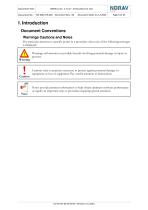
1. Introduction Document ConventionsWarnings Cautions and Notes Pay particular attention to specific points in a procedure when one of the following messages is displayed: Warnings call attention to possible hazards involving potential damage or injury to persons. Cautions refer to practices necessary to protect against potential damage to • equipment or loss of equipment. Pay careful attention to instructions. Notes provide pertinent information to help obtain optimum software performance or signify an important step or procedure requiring special attention.
Open the catalog to page 4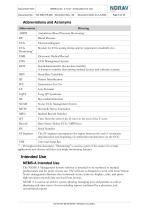
1,2 — Throughout this document, "Monitoring" is used as a part of the names for certain applications and devices and does not imply monitoring features. The NEMS-A Management System software is intended to be marketed to medical professionals and for point-of-care use. The software is designed to work with local/remote Norav management database that commonly stores, retrieves, displays, edits, and prints high-resolution records data received from devices. NEMS-A is used as an archive system allowing managing tests and patients as well as displaying real-time status of tests including reports...
Open the catalog to page 5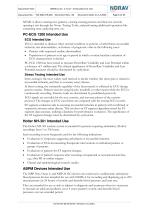
NEMS-A allows creating new patients, viewing existing patients and their test records, opening a test through the Norav Testing Tools, and performing additional operations like comparing tests, analyzing tests, etc. ECG is intended to disclose either normal condition or patterns of arrhythmia, myocardial ischemia, rate abnormalities, or features of prognostic value in the following cases: • Patients with suspected cardiac abnormalities • Populations of patients at an age or period in which a routine baseline evaluation of ECG characteristics is desired. PC-ECG 1200 has been tested to measure...
Open the catalog to page 6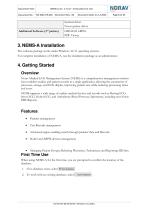
3. NEMS-A Installation The software package works under Windows 10/11 operating systems. For complete installation of NEMS-A, run the installation package as an administrator. Norav Medical ECG Management System (NEMS) is a comprehensive management solution that combines studies and patient records in a single application, allowing the automation of processes, storage, and ECG display, improving patient care while reducing processing times and costs. NEMS supports a wide range of cardiac medical devices and records such as Resting ECG, Stress ECG, Holter ECG, and Ambulatory Blood Pressure, Spirometry,...
Open the catalog to page 8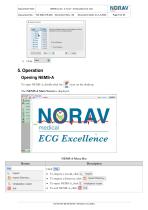
Document Title: 5. Operation Opening NEMS-A To open NEMS-A, double-click the NEMS-A Menu Bar Button Click Description Import Directory... Initialization wizard £3 Exit To import a record, click \ ■ Import. To import a directory, click Import Directory. To open NEMS-A, click Initialization wizard To exit NEMS-A, click E3 Exit . Format NV-04.04.04 Rev. 03 Date 21.12.2023
Open the catalog to page 9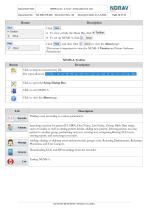
Button Description Click View : To view or hide the Menu Bar, click To setup NEMS-A, click y Setup Click Help , and then click to view the About page: This menu is important to view the NEMS-A Version and Norav Software Permissions. NEMS-A Toolbar Button Finding a test according to various parameters. Searching a patient by patient ID, MRN, First Name, Last Name, Group, Birth Date range, and/or Gender as well as editing patient details, adding new patient, deleting patient, moving patient to another group, performing new test, viewing test, comparing Resting ECG tests, viewing report, and reviewing...
Open the catalog to page 10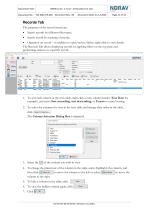
The purposes of the record screen are: • Search records by different filter types. • Search record by scanning a barcode. • Operation on record — in addition to open/review/delete, right-click to view details. The Records Tab allows displaying records by applying filters on the top pane and performing actions on a specific record. 1. To sort each column in the tests table, right-click on the column header (Test Date for example), and select Sort ascending, sort descending, or Unsort to cancel sorting. 2. To select the columns for view in the tests table and change their order in the table, click...
Open the catalog to page 11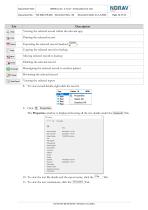
Tab. 11. To view the test conclusions, click the Description Tab.
Open the catalog to page 12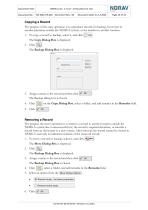
The purpose of the copy operation is to reproduce records for backup, for review by another physician outside the NEMS-A system, or for transfer to another location. 1. To copy a record to backup, select it, and click : _ c°py The Copy Dialog Box is displayed. The Backup dialog box is closed. 4. Click on the Copy Dialog Box, select a folder, and add remarks in the Remarks field. The purpose the move operation is to remove a record to another location outside the NEMS-A system due to unsuccessful test, the record is required elsewhere, or transfer a record from an old system to a new system. After...
Open the catalog to page 13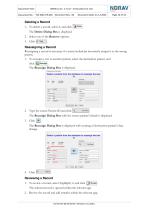
Deleting a Record 1. To delete a record, select it, and click The Delete Dialog Box is displayed. 2. Select one of the Remove options. Reassigning a record is necessary if a nurse/technician incorrectly assigns it to the wrong patient. 1. To reassign a test to another patient, select the destination patient, and click Type the source Patient ID and click Get patient . The Reassign Dialog Box with the source patient's details is displayed. Click 4.Reviewing a Record 1. To review a record, select (highlight) it, and click The selected record is opened within the relevant app. 2. Review the record...
Open the catalog to page 14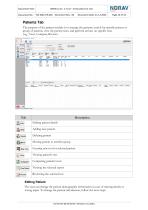
The user can change the patient demographic information in case of missing details or wrong input. To change the patient information, follow the next steps:
Open the catalog to page 15All NORAV Medical catalogs and technical brochures
 NBP-24 NG
309 Pages
 NBP One Ambulatory Blood Pressure
35 Pages
 NR SERIES
40 Pages
 PC-ECG1200
143 Pages
 Mobile ECG
91 Pages
 NECG SE-1200 Pro
81 Pages
 NECG SE-301
69 Pages
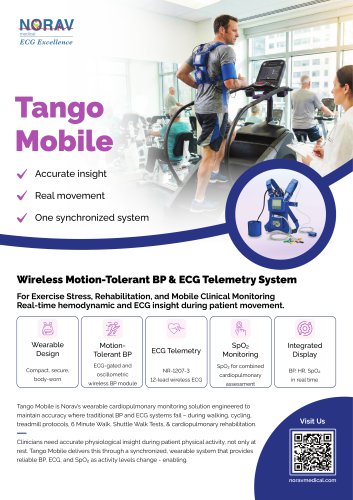 Telemetry Tango Mobile
4 Pages
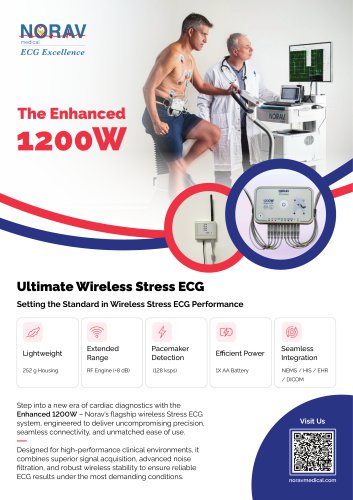 Enhanced 1200W
4 Pages
 Telemetry
30 Pages
Archived catalogs
 Stress Test ECG
4 Pages
 Resting ECG
6 Pages
 Holter
4 Pages
 ECG Management System
2 Pages
 Thermal Printers
4 Pages
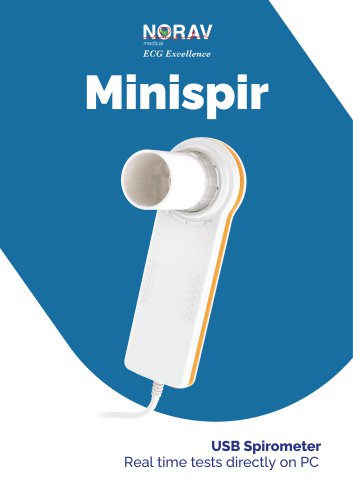 System Spirometer Minispir
6 Pages

- Medical dolly
- Hospital trolley
- Medical device trolley
- Anodized aluminum trolley
- Analysis software
- Plastic trolley
- Patient monitor
- SpO2 monitor
- Visualization software
- Equipment trolley
- Tablet computer software
- Tablet PC software
- Reporting software
- Medical pulse oximeter
- Windows software
- Height-adjustable trolley
- Blood pressure patient monitor
- NORAV digital electrocardiograph
- NORAV electrocardiograph
- Compact trolley