
- Catalogs
- smart optics Sensortechnik GmbH
- Install instructions exocad DentalCAD

Install instructions exocad DentalCAD
Install instructions exocad DentalCAD
Catalog excerpts
Installation Manual exocad® DentalCAD Version 2.3 Matera Distributed by smart optics Sensortechnik GmbH Copyright © 2019 smart optics Sensortechnik GmbH. All rights reserved. – Translation of the original installation manual
Open the catalog to page 1
Legal notice Dear customer, Thank you for choosing the prestigious exocad® DentalCAD software and smart optics! If you require additional information or if you have any questions about the software, please contact your smart optics reseller. Our trained resellers provide first-level support for all applications. The smart optics technical support will be glad to answer any specific questions concerning exocad® and your smart optics scanner you may have. Over the phone: smart optics is a certified exocad® sales partner: www.exocad.com We wish you much joy with exocad DentalCAD and your smart optics...
Open the catalog to page 2
Edition: 05-2019 2.3 Matera Page 3
Open the catalog to page 3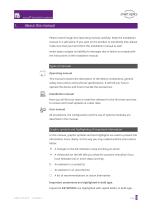
exocad® DentalCAD Installation About this manual Please read through this Operating manual carefully. Keep the installation manual in a safe place. If you pass on the product to somebody else, please make sure that you hand them this installation manual as well. smart optics accepts no liability for damages due to failure to comply with the instructions in the installation manual. Types of manuals Operating manual This manual contains the description of the device components, general safety instructions and technical specifications. It will tell you how to operate the device and how to handle...
Open the catalog to page 5
exocad® DentalCAD Installation Cross-references within a manual are highlighted with a book icon. Crossreferences act as hyperlinks in the electronic version. Click on the number to follow the link. The page navigation of the PDF reader returns you to the starting point (“Previous view” or “Back”). The signpost shows a selection of topics related to your current issue. Cross-references to other manuals are highlighted with a symbol for the type of manual: a scanner for the Operating Manual, a software package for the installation manual and a user sitting at the PC for the User Manual. This icon...
Open the catalog to page 6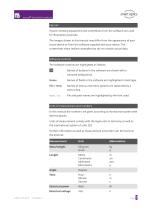
Figures showing equipment and screenshots from the software are used for illustration purposes. The images shown in this manual may differ from the appearance of your actual device or from the software supplied with your device. The screenshots show realistic examples but do not contain actual data. Software controls The software controls are highlighted as follows: Names of buttons in the software are shown with a coloured background. Names of fields in the software are highlighted in bold type. Names of menus and menu options are separated by a vertical line. File and path names are highlighted...
Open the catalog to page 7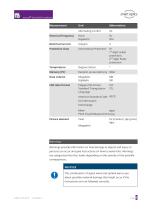
Unit Abbreviation Alternating current AC Electrical frequency Hertz Hz Electrical current Ampere A Protection class International Protection IP 1st digit: solids protection, 2nd digit: fluids protection Temperature Degree Celsius ° Memory (PC) Random-Access Memory RAM Data volume Megabyte MB CAD data format Polygon file format PLY American Standard Code ASCH for Information Interchange Point Cloud Measurement pcm Warnings provide information on how damage to objects and injury to persons can occur and give instructions on how to avoid risks. Warnings are categorized into four levels depending...
Open the catalog to page 8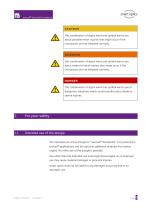
exocad® DentalCAD Installation CAUTION This combination of signal word and symbol warns you about possible minor injuries that might occur if the instructions are not followed correctly. WARNING This combination of signal word and symbol warns you about severe to lethal injuries that might occur if the instructions are not followed correctly. DANGER This combination of signal word and symbol warns you of dangerous situations which could lead directly to death or severe injuries. Intended use of the dongle The intended use of the dongle for “exocad® DentalCAD” is to protect the exocad® applications...
Open the catalog to page 9
□ You should read this installation manual for your own safety before performing the installation. Always follow the general safety instructions and the instructions for proper use. □ The dongle is designed solely for use inside dry, closed rooms. Contact with moisture, cold or heat can damage it. □ Only plug the dongle into a compatible USB port on the PC. Plugging it in incorrectly can damage the contacts. □ The general safety instructions included in the operating instructions of the scanner apply to the scanner used with exocad® DentalCAD. CE label The CE label on the type plate documents...
Open the catalog to page 10
exocad® DentalCAD Installation Introduction: exocad® for smart optics 3D dental scanners As user of a smart optics 3D Dental Scanner, you benefit from the integration of dental CAD with the smart optics scanner software. The scanning process is controlled entirely from exocad® DentalCAD. An adapted workflow supports you within the scanner software. exocad® DentalCAD is basically compatible with all versions of dental Scan, as well as previous versions. However, you should take into consideration that the current exocad workflows are only supported by the latest scanner software. As of dental...
Open the catalog to page 11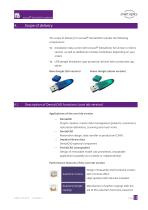
exocad® DentalCAD Installation Scope of delivery The scope of delivery for exocad® DentalCAD includes the following components: 1x Installation data carrier with exocad® DentalCAD, full version or demo version, as well as additional modules (individual, depending on your order). 1x USB dongle (hardware copy-protection device) with a protective cap, either: Blue dongle (full version) Green dongle (demo version) Description of DentalCAD functions (core lab version) Applications of the core lab version DentalDB Project creation, master data management (patients, customers), restoration definitions,...
Open the catalog to page 12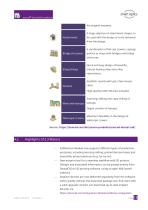
exocad® DentalCAD Installation the original anatomy. A large selection of attachment shapes, to Attachments be used with the design or to be removed from the design. A combination of full cast crowns, copings, Bridge structures pontics or inlays with bridges and bridge structures. Quick and easy design of beautiful, natural-looking inlay and onlay restorations. Aesthetic results with just a few mouse clicks. High-quality tooth libraries included. Scanning, editing and copy-milling of Work with waxups waxups. Digital creation of waxups. Telescopic crowns Maximum flexibility in the design of telescopic...
Open the catalog to page 13All Smart optics Sensortechnik GmbH catalogs and technical brochures
 Operating manual Vinyl series
95 Pages
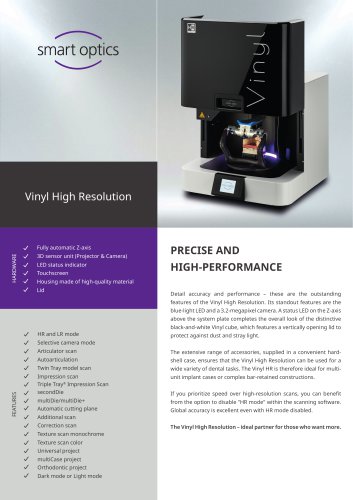 Flyer Vinyl High Resolution
2 Pages
 smart optics mini
2 Pages
 Vinyl High Resolution
3 Pages
 Vinyl UXD
2 Pages
Archived catalogs
 Audiology
22 Pages
 AUDIOLOGY CATALOGUE
24 Pages
 scanBox pro
1 Page
 Activity Scanner
8 Pages
 duo scan
4 Pages
 ds Production
4 Pages
 mono Scan
4 Pages
 Activity 710
1 Page
 software dentprogress 2015
6 Pages
 Activity 300
1 Page
 Activity 885 Mark 2
1 Page
 scanBox
1 Page
- Visualization software
- Windows software
- Dental software
- Design software
- Capture software
- Smart optics 3D scanner
- Server-based software
- 3D software
- CAD software
- Smart optics STL 3D scanner
- Smart optics benchtop 3D scanner
- Smart optics LED 3D scanner
- Smart optics PLY 3D scanner
- Orthodontic software
- Dental laboratory software
- Color 3D scanner
- Structured light 3D scanner
- Medical industry 3D scanner
- High-resolution 3D scanner